
Comments are a useful way to let visitors interact with your WordPress website. They allow readers to ask questions, share opinions, and discuss your content directly below your posts.
However, WordPress comments can sometimes be disabled because of website settings, individual post settings, or changes made by a previous administrator. If visitors cannot see the comment box on your posts, you may need to enable comments manually.
In this guide, you will learn how to enable comments in WordPress for new posts, existing posts, pages, and multiple posts at once.
Why Enable Comments in WordPress?
Comments can make your website more interactive. They give readers an opportunity to provide feedback and communicate with you.
For blogs, tutorials, news websites, and community-focused websites, comments can encourage further discussion. They can also help you understand what your audience thinks about your content.
Before enabling comments, however, make sure you are ready to moderate them. Spam comments can become a problem if your website receives a lot of traffic.
If comments were previously disabled, you can Turn On WordPress Comments by changing a few settings in your dashboard.
How to Enable Comments for New Posts
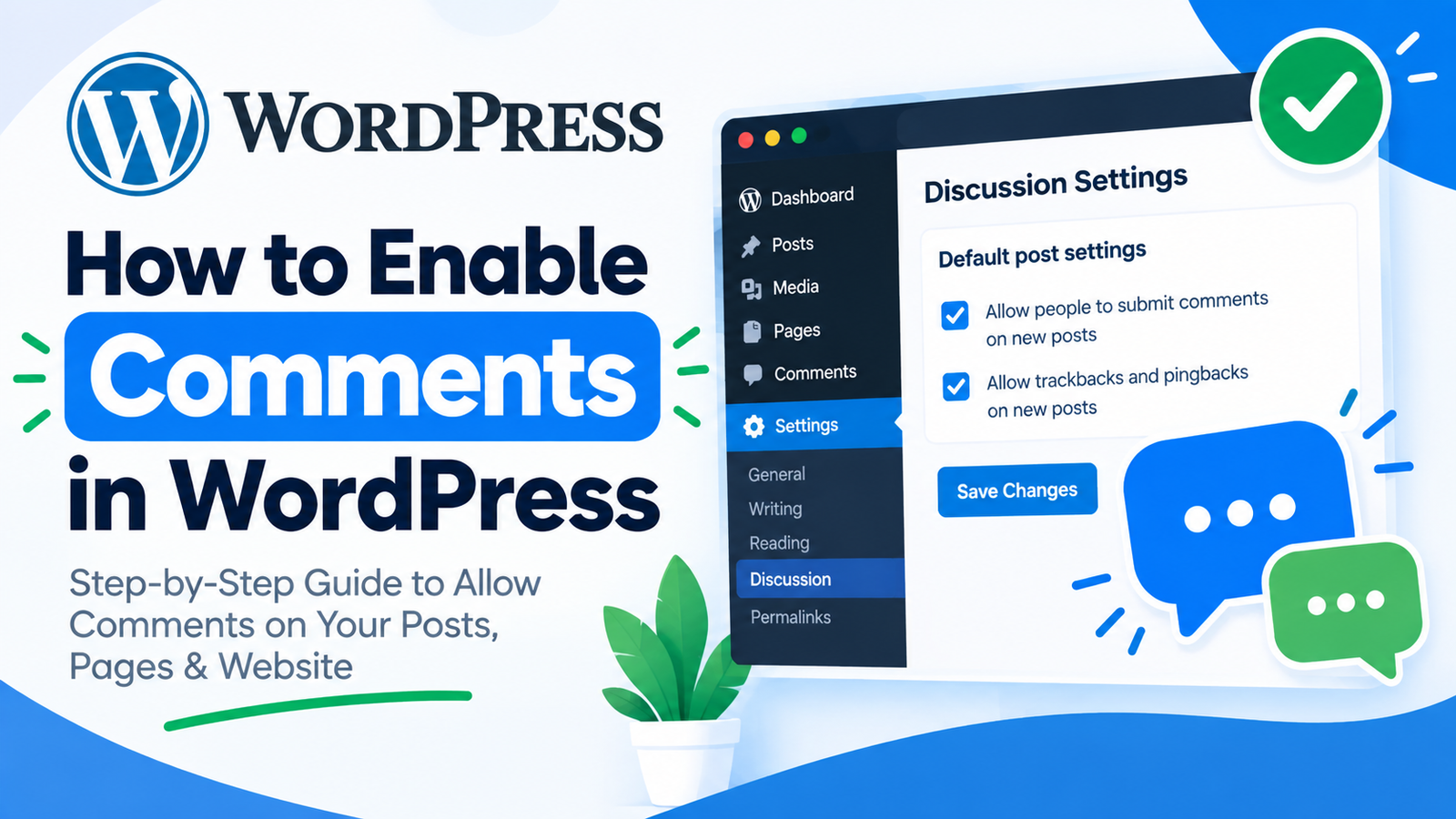
The easiest way to enable comments for future posts is through the WordPress Discussion settings.
Follow these steps:
- Log in to your WordPress admin dashboard.
- Go to Settings.
- Click Discussion.
- Find the option called “Allow people to submit comments on new posts.”
- Check the box next to this option.
- Scroll down and click Save Changes.
After saving the settings, comments will be enabled for new posts.
This setting mainly controls the default comment option for posts that you publish after making the change. Existing posts may still have comments disabled individually.
How to Enable Comments on an Existing Post
If comments are disabled on an older post, you can enable them from the post editor.
First, go to Posts > All Posts in your WordPress dashboard. Find the post where you want to allow comments and click Edit.
Next, open the Discussion settings in the editor. Look for the option that allows visitors to submit comments and enable it.
Finally, click Update to save your changes.
Open the post on your website and check whether the comment section is now visible.
How to Enable Comments on Multiple Posts
If you have many posts with comments disabled, enabling them individually can take considerable time. Fortunately, WordPress includes a bulk editing feature.
Go to Posts > All Posts and select the posts where you want to enable comments.
From the Bulk Actions dropdown, select Edit and click Apply.
Look for the comments setting in the bulk editor. Select the option that allows comments, and then click Update.
WordPress will apply the change to the selected posts.
This method is especially useful for websites with a large number of articles.
How to Enable Comments on WordPress Pages
Comments can also be enabled on WordPress pages, although many websites use comments mainly on posts.
To enable comments on a page, go to Pages > All Pages and open the page you want to edit.
Find the Discussion settings and enable the option that allows comments. Then click Update.
If you cannot find the Discussion panel, check your editor settings. Depending on your WordPress version, theme, or configuration, the discussion controls may appear in a different location.
What If the Comment Box Still Does Not Appear?
Sometimes comments are enabled, but the comment form is still missing. In this situation, check the individual post settings first.
Also check whether your WordPress theme controls the display of comments. Some themes provide their own options for showing or hiding the comment section.
You should also check whether a plugin is affecting comments. Security, membership, optimization, and comment-management plugins can sometimes change how comments work.
After making changes, clear your website cache and browser cache before checking the page again.
How to Manage Comments After Enabling Them
Once comments are enabled, you should regularly monitor them.
WordPress provides comment moderation tools that allow you to approve, delete, or mark comments as spam. You can also configure discussion settings to require approval before comments become visible.
Using moderation settings can help reduce unwanted content while still allowing genuine visitors to participate in discussions.
Final Thoughts
Enabling comments in WordPress is a simple process. You can enable comments for new posts through Settings > Discussion, while existing posts and pages can be updated individually.
For websites with many articles, the bulk editing feature can save time.
After enabling comments, remember to monitor them regularly and use WordPress moderation settings to control spam and unwanted messages. With the right settings, comments can become a useful way to create more interaction between your website and its visitors.

Leave a Reply