
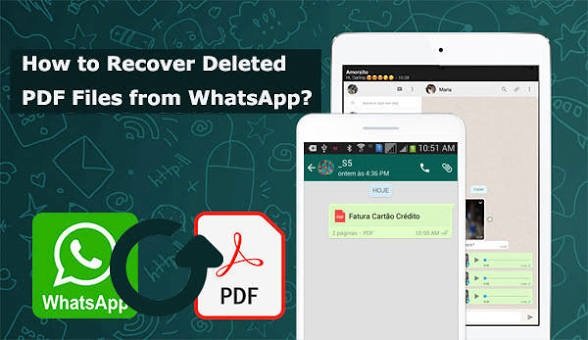
WhatsApp is one of the most popular messaging apps for sharing important files. People regularly receive PDFs, Word documents, Excel sheets, presentations, and other attachments through chats. Sometimes, these files get deleted accidentally or disappear after changing phones, reinstalling WhatsApp, or clearing storage.
Losing an important document can be frustrating, especially when you need it for work or personal use. Fortunately, there are several ways to recover deleted WhatsApp documents. In this guide, you will learn how to recover deleted WhatsApp documents on Android and iPhone using practical methods.
1. Check Your WhatsApp Chat First
Before trying advanced recovery methods, check the original WhatsApp conversation. Sometimes, the document is still available in the chat even if you cannot find it in your phone’s downloads folder.
Follow these steps:
- Open WhatsApp on your phone.
- Open the conversation where you received the document.
- Tap the contact or group name.
- Select the Media, Links, and Docs section.
- Open the Documents tab.
- Look for the missing file and download it again.
If the sender has not deleted the document and it is still available, you may be able to download it without restoring a backup.
2. Recover Documents Using WhatsApp Backup
WhatsApp provides backup options that can help restore lost conversations and attachments. Android users can use Google Drive backups, while iPhone users can use iCloud backups.
However, this method works only if a backup containing the deleted document was created before the file disappeared.
For Android users:
- Open WhatsApp and go to Settings.
- Select Chats and then Chat backup.
- Check the date of your last backup.
- If the backup contains the missing document, uninstall WhatsApp.
- Reinstall the app and verify your phone number.
- Follow the instructions to restore your backup.
For iPhone users:
- Open WhatsApp Settings.
- Select Chats and then Chat Backup.
- Check whether an older suitable iCloud backup exists.
- Reinstall WhatsApp if the backup contains your missing file.
- Verify your number and select Restore Chat History.
Important: Restoring an older backup may replace newer chat history. Back up your current chats first and understand what could be lost. Never create a new backup over an older backup that may contain the missing document.
3. Check Your Phone’s File Manager
Android devices often store downloaded WhatsApp documents in internal storage. Even if a file is missing from a chat, a separate copy may still exist on your device.
Follow these steps:
- Open your phone’s File Manager.
- Go to Internal Storage.
- Open Android, then media.
- Find the com.whatsapp folder.
- Navigate to WhatsApp and then Media.
- Open the WhatsApp Documents folder.
- Search for your missing PDF, Word, or Excel file.
Folder names and locations can vary depending on your Android version and WhatsApp installation. Also check Downloads and any other folders where you may have saved the document.
4. Ask the Sender to Share the Document Again
One of the easiest solutions is to contact the person who originally sent the document. If they still have the file, ask them to send it again.
This method is especially useful when:
- Your WhatsApp backup does not contain the document.
- The file is missing from your phone storage.
- You recently changed your device.
- The document was deleted several weeks ago.
Asking the sender can save time and help you avoid unreliable recovery applications.
5. Recover WhatsApp Documents on iPhone
iPhone users have fewer direct file-system recovery options than Android users. However, there are still some places worth checking.
First, open the Files app and check the Downloads and On My iPhone folders. If you previously saved the document, it may still be available there.
Next, check the Recently Deleted folder in the Files app. Deleted files may remain there temporarily before permanent removal.
You should also check iCloud Drive if you use it to store documents. If the file was saved to iCloud, you may be able to restore it from the Recently Deleted section.
If none of these options work, an eligible WhatsApp iCloud backup may help restore the missing attachment.
6. Be Careful With Third-Party Recovery Apps
Many applications claim to recover deleted WhatsApp files. However, not every recovery tool works as advertised.
Some applications require unnecessary permissions or request access to private messages and documents. Avoid installing unknown software or sharing your WhatsApp verification code.
Before using any recovery tool, check its reputation, privacy policy, and permissions. No application can guarantee recovery of permanently deleted documents.
7. How to Prevent WhatsApp Documents From Getting Lost
Preventing data loss is easier than recovering important files. Follow these simple habits:
- Enable regular WhatsApp chat backups.
- Save important documents to Google Drive or iCloud.
- Keep a separate copy of work-related files.
- Avoid deleting unknown folders from phone storage.
- Check your backup date regularly.
- Download important attachments as soon as you receive them.
These simple steps can protect your important documents and reduce the risk of losing valuable information.
Conclusion
Recovering deleted WhatsApp documents is possible in many situations, depending on where the file was stored and whether a suitable backup exists. Start by checking the original chat, phone storage, and backup options. iPhone users should also check the Files app and iCloud Drive.
If the document is not available anywhere, asking the original sender for another copy may be the easiest solution. Most importantly, maintain regular backups to protect your important files in the future.

Leave a Reply