
A clean URL structure makes your WordPress website easier to understand and navigate. It can also help visitors know what a page is about before they open it. WordPress gives you several permalink options, so you can choose a URL format that fits your website.
If your current URLs contain dates, numbers, or unnecessary information, you may want to change them. In this guide, you will learn how to change WordPress permalink structure safely and choose a simple URL format for your website.
What Is a WordPress Permalink?
A permalink is the permanent URL of a page, post, or other content on your WordPress website. For example, a URL may look like this:
https://example.com/how-to-use-wordpress
The part after your domain name is controlled by your permalink settings.
WordPress can create URLs using different structures. Some websites use the post name, while others include the publication date or category.
A simple URL is usually easier for users to read and remember.
Why Change the WordPress Permalink Structure?
There are several reasons to change your permalink structure. A website owner may want shorter URLs, cleaner links, or a more consistent URL format.
For example, a URL such as:
example.com/2026/10/02/how-to-use-wordpress/
contains a date that may not be necessary.
A simpler format could be:
example.com/how-to-use-wordpress/
The second URL is easier to read and clearly shows the topic of the page.
Before changing your structure, remember that existing URLs may be affected. If your website already has published pages and posts, changing permalinks can create broken links unless the old URLs are properly redirected.
How to Change WordPress Permalink Structure
Follow these steps to update your WordPress permalink settings.
Step 1: Log In to WordPress
First, log in to your WordPress admin dashboard.
You normally access the dashboard by visiting:
yourdomain.com/wp-admin
Enter your username and password, then open the dashboard.
Step 2: Open Permalink Settings
From the WordPress dashboard, look at the menu on the left side.
Go to:
Settings → Permalinks
This page contains the available permalink structure options.
Step 3: Choose a Permalink Structure
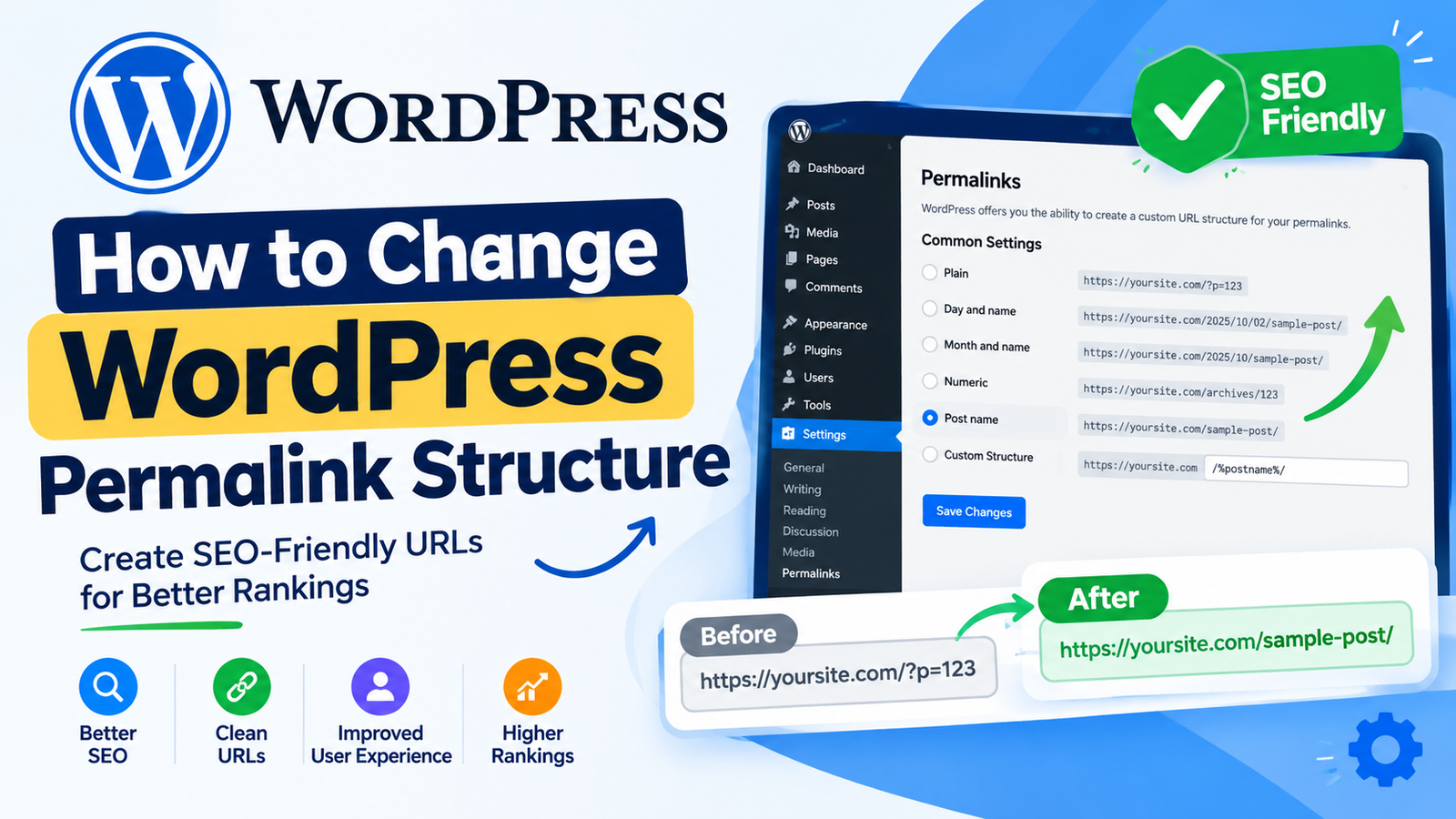
WordPress provides several common options, such as Plain, Day and name, Month and name, Numeric, Post name, and Custom Structure.
For many blogs, the Post name option provides a simple and readable URL.
For example:
example.com/sample-post/
Instead of:
example.com/?p=123
The Post name format uses the title or slug of your post in the URL.
Step 4: Select Post Name
If you want a short and readable URL, select Post name.
WordPress will show the structure in the settings area. Review the option before saving your changes.
Keep your URLs descriptive and avoid adding unnecessary words or characters.
Step 5: Save the Changes
After selecting your preferred structure, scroll down and click Save Changes.
WordPress will update the permalink settings.
You should then test a few posts and pages to make sure their URLs work correctly.
What Is the Best Permalink Structure?
There is no single structure that is required for every website. However, many blogs prefer a simple structure based on the post name.
A post-name URL can make the topic immediately clear.
For example:
example.com/wordpress-permalink-guide/
is easier to understand than:
example.com/2026/10/02/?p=456
When creating URLs, keep them short, descriptive, and relevant to the page content.
Things to Check Before Changing Permalinks
Changing permalink settings on an established website requires care. Existing links may stop working if the URL of a post or page changes.
Before making the change, consider creating a backup of your website.
You should also check important URLs after saving the new structure. Open several posts, pages, category pages, and other important links.
If old URLs have been indexed by search engines or shared on other websites, set up appropriate redirects from the old URLs to the new ones.
This helps visitors reach the correct content instead of seeing a 404 error.
Keep Your URLs Simple
A good permalink should be easy to read and understand. Avoid unnecessarily long URLs with random numbers or complicated characters.
For example, instead of:
example.com/2026/10/02/how-to-change-wordpress-permalink-structure-and-settings/
you could use:
example.com/change-wordpress-permalinks/
A shorter URL can be easier to share and remember.
For more information, follow this WordPress URL structure guide to keep your website links organized and user-friendly.
Can You Change Permalinks After Publishing Posts?
Yes, you can change permalink settings after publishing content. However, you should be careful when working with an established website.
If changing the structure also changes existing URLs, old links can become unavailable. This can affect links from other websites, social media posts, bookmarks, and search engine results.
For this reason, always check your website after making changes and use redirects when necessary.
Final Thoughts
Learning how to change WordPress permalink structure is simple. Go to Settings → Permalinks, choose the URL format you want, and click Save Changes.
For many websites, the Post name structure provides clean and readable URLs. However, if your website already has many published pages and backlinks, plan the change carefully.
Always test your important URLs after changing the structure and use redirects when old URLs are no longer valid. A consistent and readable URL structure can make your WordPress website easier to manage and navigate.
Leave a Reply