
WordPress makes it easy to build a website without knowing how to code. However, there are times when you may need to add HTML code to your website. You might want to add a custom button, embed content, create a special layout, or display HTML elements inside a page or post.
The good news is that you do not need advanced coding skills to add HTML code to WordPress. WordPress provides several simple methods that beginners can use. In this guide, you will learn how to add HTML code safely and where to place it.
What Is HTML Code?
HTML stands for HyperText Markup Language. It is used to structure content on websites.
For example, HTML can create headings, paragraphs, links, buttons, images, lists, and other elements. A simple HTML paragraph looks like this:
<p>This is a sample paragraph.</p>
WordPress normally generates HTML automatically when you create content. However, the Custom HTML block allows you to enter your own HTML when you need more control.
Method 1: Use the Custom HTML Block
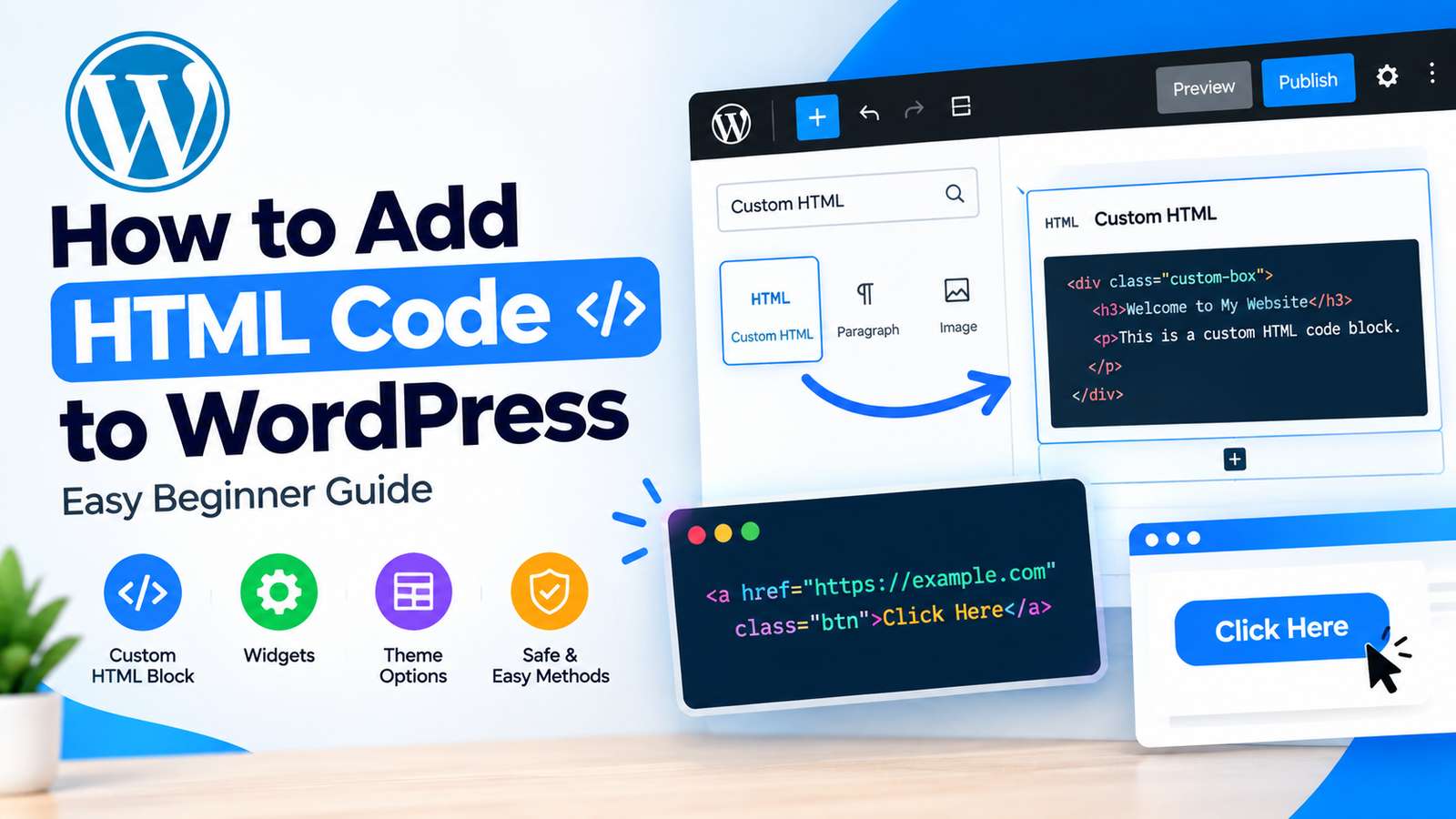
The easiest way to add HTML code to a WordPress post or page is through the Custom HTML block.
First, log in to your WordPress dashboard. Go to Posts > Add New or Pages > Add New, depending on where you want to add the code.
Click the + button to add a new block. Search for Custom HTML and select it.
A box will appear where you can enter your HTML code. Paste your code into this box.
For example, you can add a simple button using HTML:
<a href="https://example.com">Visit Our Website</a>
After adding the code, click Preview to see how it appears on your page.
This method is useful because you can add HTML without editing your theme files.
Method 2: Edit HTML in the WordPress Block Editor
The WordPress Block Editor also lets you view and edit the HTML structure of individual blocks.
Add a block to your post and open its options menu. Depending on the block, you may see an option such as Edit as HTML.
Select this option to view the HTML behind that particular block. You can then make small changes to the markup.
This method is useful when you want to make adjustments to an existing block instead of creating a completely new HTML section.
If you are learning WordPress, these HTML code insertion tips can help you understand where custom HTML is appropriate.
Method 3: Add HTML to a Widget Area
You can also add HTML code to some WordPress widget areas.
Go to Appearance > Widgets from your WordPress dashboard. Depending on your theme, you may see areas such as the sidebar or footer.
Click the + button and search for the Custom HTML widget or block. Add it to the area where you want your HTML to appear.
Enter your code and save the changes.
This option is useful for adding custom content to a sidebar or footer without changing the main page content.
How to Add HTML to the WordPress Header
Sometimes HTML or other code needs to be placed inside the website’s <head> section. This is different from adding HTML to a post or page.
For header code, you can use a suitable code-management plugin or a theme feature designed for custom header scripts.
Avoid placing random code directly into theme files unless you understand what the code does. Incorrect changes can cause website errors or disappear when the theme is updated.
How to Add an HTML Link
Adding links is one of the most common reasons to use HTML.
A basic HTML link looks like this:
<a href="https://example.com">Click Here</a>
You can replace the URL and text with your own information.
Before publishing, always test the link to make sure it points to the correct page.
Important Safety Tips
Always check HTML code before adding it to your WordPress website. Do not paste code from unknown or untrusted sources.
Some code may contain JavaScript, tracking scripts, or other elements that can affect your website’s security and performance.
It is also a good idea to create a backup before making significant changes to your website. If something goes wrong, you can restore the previous version.
For simple HTML, the Custom HTML block is generally safer and easier for beginners than editing theme files.
How to Check Your HTML Code
After adding HTML, preview your page before publishing it. Check the appearance on both desktop and mobile devices.
Make sure links work correctly, images load properly, and the content does not break your page layout.
If the HTML does not display correctly, check for missing quotation marks, closing tags, or incorrect URLs. A small HTML mistake can sometimes prevent an element from displaying as expected.
Conclusion
Learning how to add HTML code to WordPress gives you more control over your website’s content and design. For most beginners, the Custom HTML block is the easiest option for adding HTML to posts and pages.
You can also use HTML in widget areas or edit individual blocks when necessary. For code that belongs in the website header, use a reliable code-management method instead of making unnecessary changes to theme files.
Always test your code before publishing and use only trusted code sources. With these simple methods, you can confidently add HTML code to WordPress while keeping your website organized and secure.



Leave a Reply