
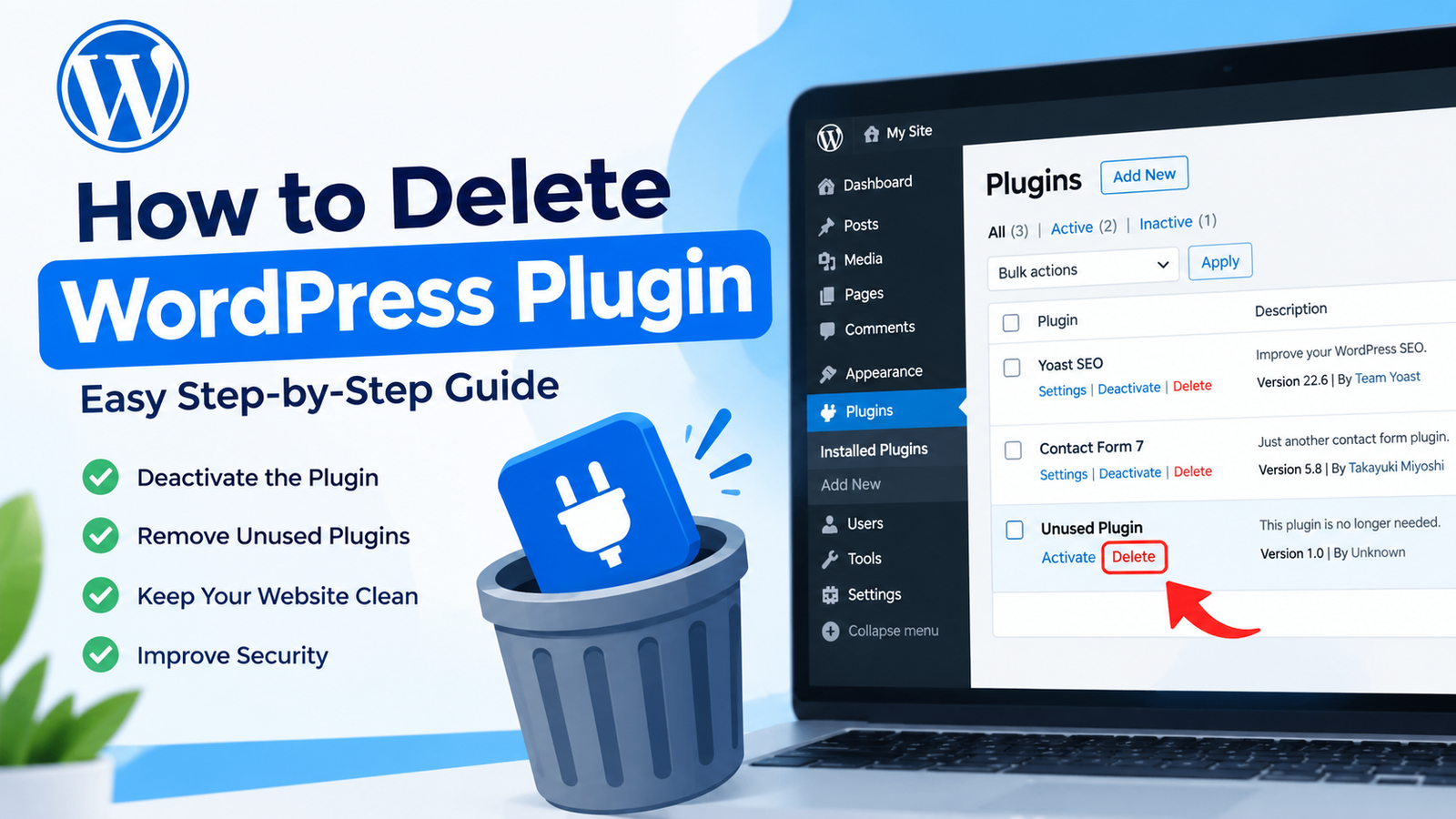
WordPress plugins add useful features to your website, but keeping too many unused plugins can make your site harder to manage. If you no longer need a plugin, deleting it can help keep your WordPress dashboard organized and reduce unnecessary files.
If you are wondering how to delete WordPress plugin, the process is simple. WordPress allows you to deactivate and delete plugins directly from the admin dashboard. In this guide, you will learn how to safely remove a WordPress plugin without affecting the rest of your website.
Why Should You Delete Unused WordPress Plugins?
Installing plugins is easy, but leaving plugins that you no longer use is not recommended. An unused plugin may still contain files that can become a security concern if the plugin is outdated.
Deleting unnecessary plugins can also make your WordPress dashboard cleaner. It helps you keep only the tools that your website actually needs.
However, you should never delete a plugin without checking whether your website depends on it. Some plugins work together with themes or other plugins, so removing one may affect certain features.
Deactivate the Plugin Before Deleting It
Before you delete a plugin, you should deactivate it first. Deactivation turns off the plugin without removing its files.
To deactivate a plugin, log in to your WordPress dashboard and go to Plugins > Installed Plugins. Find the plugin you want to remove and click Deactivate.
Once the plugin is deactivated, check your website. Open a few important pages and make sure everything still works correctly.
If there are no problems, you can continue with the deletion process.
How to Delete WordPress Plugin
Follow these simple steps to remove a plugin from your WordPress website.
Step 1: Log In to WordPress
First, log in to your WordPress admin dashboard. You normally access it by adding /wp-admin to your website address.
Enter your username and password to open the dashboard.
Step 2: Open Installed Plugins
From the WordPress dashboard, look at the left-hand menu and click Plugins.
Then select Installed Plugins. You will see a list of all plugins currently installed on your website.
Step 3: Find the Plugin
Scroll through the list and find the plugin you want to delete.
Make sure you have selected the correct plugin before continuing. If the plugin is active, click Deactivate first.
Step 4: Click Delete
After deactivating the plugin, you should see a Delete option below its name.
Click Delete. WordPress may display a confirmation message asking if you really want to remove the plugin.
Confirm the action to permanently delete the plugin files from your WordPress installation.
Step 5: Check Your Website
After deleting the plugin, visit your website in a new browser tab.
Check your homepage, important pages, contact forms, menus, and other features that may have been connected to the plugin.
If everything works normally, the plugin has been successfully removed.
Can You Delete an Active Plugin?
WordPress normally requires you to deactivate a plugin before deleting it. If a plugin is currently active, you will usually see the Deactivate option instead of Delete.
Deactivate the plugin first, then return to the Installed Plugins page. You should now be able to delete it.
This extra step gives you an opportunity to test your website before permanently removing the plugin.
What Happens When You Delete a Plugin?
Deleting a plugin removes its plugin files from your WordPress installation. However, some plugins may leave settings or database information behind.
This depends on how the plugin was developed. Some plugins provide a separate option for completely removing their data.
Before deleting an important plugin, check its documentation to see whether it has special uninstall instructions.
Tips for Safely Removing Plugins
Always create a recent backup before making major changes to your website. A backup gives you a way to restore your site if something goes wrong.
You should also avoid deleting plugins that your website currently needs. If you are unsure about a plugin, check what it does before removing it.
Regularly reviewing your installed plugins is also a good maintenance habit. Keep your active plugins updated and remove plugins that you no longer need.
For better WordPress maintenance, remove unused WordPress plugins regularly and keep your website’s plugin list organized.
Final Thoughts
Learning how to delete WordPress plugin is an important part of basic WordPress maintenance. The process is straightforward: deactivate the plugin, delete it from the Installed Plugins page, and then check your website.
Before removing any plugin, make sure it is not required by your website. Taking a backup and checking the plugin’s documentation can also help prevent unexpected problems.
By regularly reviewing your plugins and removing unnecessary ones, you can keep your WordPress dashboard cleaner and make website management easier.
Leave a Reply