
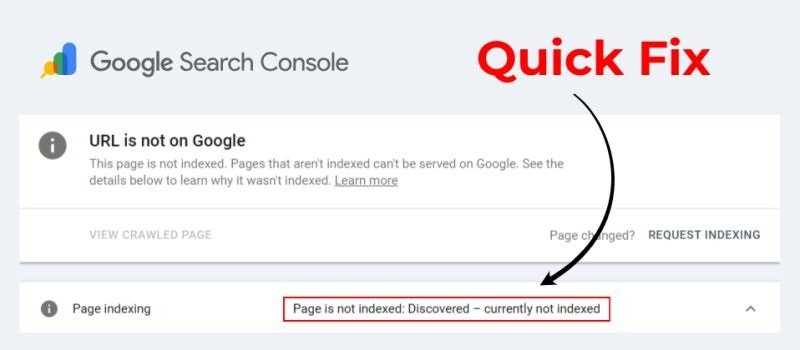
Creating a useful webpage does not automatically mean that Google will index it. Sometimes, a page may remain outside Google’s search results because of technical SEO problems, crawling issues, duplicate content, or incorrect indexing settings.
If you have noticed that one of your important pages is not appearing in Google Search, you can investigate the problem through Google Search Console. In this guide, you will learn how to fix page not indexed by Google and what you should check before requesting indexing.
1. Check the Page in Google Search Console
The first step is to find out why Google has not indexed your page. Open Google Search Console and use the URL Inspection tool.
Enter the complete URL of the page you want to check. Google Search Console will show whether the URL is indexed and may provide information about crawling and indexing.
If the page is not indexed, look at the reason shown in the report. The reason can help you decide which solution to use.
2. Make Sure the Page Is Not Set to Noindex
One of the most common reasons a page does not appear in Google is a noindex directive.
A noindex instruction tells search engines that a page should not be included in search results. This setting can sometimes be added accidentally through an SEO plugin or website configuration.
Check the page’s SEO settings and make sure it is allowed to appear in search engines. If you use WordPress, review the page’s indexing settings in your SEO plugin.
After removing an unwanted noindex directive, save the changes and allow Google to crawl the page again.
3. Check Your Robots.txt File
Your robots.txt file controls which parts of your website search engine crawlers can access.
If your robots.txt file blocks Google from crawling an important page or directory, Google may have difficulty discovering or processing that content.
Review your robots.txt file and look for rules that could prevent Googlebot from accessing the page. Be especially careful when making changes because an incorrect rule can affect multiple pages.
4. Check Your XML Sitemap
An XML sitemap helps search engines discover important URLs on your website. Although having a sitemap does not guarantee indexing, it can make URL discovery easier.
Make sure your page is included in your current sitemap and that the sitemap is accessible. You can also submit your sitemap through Google Search Console.
For websites with many pages, keeping the sitemap updated is particularly useful.
5. Make Sure the Page Is Accessible
Google needs to be able to access your page successfully. Open the URL in a private browser window and check whether the page loads correctly.
Look for problems such as server errors, incorrect redirects, broken links, or pages that require users to log in.
If the page returns a server error or repeatedly redirects to another URL, fix the technical issue before requesting indexing.
6. Check for Duplicate Content
Google may decide not to index a page separately if it considers the content substantially similar to another URL.
Check whether your page has a canonical URL pointing to another page. A canonical tag tells search engines which version of similar pages should be treated as the preferred URL.
If the page is supposed to be indexed separately, make sure the canonical setup is correct and that the page provides useful, unique information.
7. Improve Thin or Low-Value Content
Technical settings are not always the reason for indexing problems. Pages with very little useful information may have difficulty earning visibility in search results.
Make sure your page answers the visitor’s search intent and provides original, helpful information. Add relevant details, examples, headings, images, and other useful elements where appropriate.
Avoid adding unnecessary text simply to increase word count. Focus on making the page genuinely useful to visitors.
8. Add Internal Links
Internal links help Google discover relationships between pages on your website.
Link to the affected page from relevant, already accessible pages on your site. Use descriptive and natural anchor text rather than repeating the same phrase everywhere.
For example, you can use Google page indexing troubleshooting as a contextual anchor when discussing indexing problems.
9. Request Indexing
After fixing the problem, return to Google Search Console and use the URL Inspection tool again.
Enter your updated URL and select Request Indexing if the option is available. This tells Google that the page has been updated and should be considered for crawling.
Keep in mind that requesting indexing does not guarantee immediate indexing. Google decides when and whether a page should be indexed.
10. Monitor the Page Regularly
After making your changes, give Google some time to recrawl the page. Continue checking the URL in Google Search Console rather than repeatedly submitting the same request.
Also monitor your site’s overall indexing status. If multiple pages suddenly become unindexed, investigate whether there is a broader technical issue affecting your website.
Conclusion
If your page is not indexed by Google, do not immediately assume that the content is the problem. Start by checking Google Search Console and then review important technical factors such as noindex settings, robots.txt, sitemap accessibility, canonical tags, redirects, and server errors.
Once technical problems are resolved, improve the page’s content and internal linking where necessary. Finally, request indexing through Google Search Console and monitor the result.
Following these steps can help you identify common indexing problems and improve your website’s ability to be discovered and processed by Google.
Leave a Reply