
Your website title is one of the first details visitors may notice when they open your website. It also helps describe your website to search engines and users. If you recently created a WordPress website, changed your brand name, or want to update your site’s identity, you may need to change the website title.
Fortunately, WordPress makes this process simple. You usually do not need coding knowledge or additional plugins. You can update the title directly from the WordPress dashboard.
What Is a Website Title in WordPress?
The website title is the main name associated with your WordPress website. Depending on your theme and settings, it may appear in the website header, browser tab, search results, or other areas of your site.
For example, if your website is about technology, your title could be “Tech Trends.” You can also add a tagline to explain what your website offers.
Before making changes, it is useful to understand your WordPress site branding settings so you know where the title and tagline are displayed.
How to Change Website Title in WordPress
Follow these steps to update your website title.
Step 1: Log In to WordPress
First, open your WordPress admin dashboard. Usually, you can access it by visiting your website’s WordPress login page.
Enter your username and password, then click the login button.
Step 2: Open General Settings
After entering the dashboard, look at the menu on the left side.
Go to:
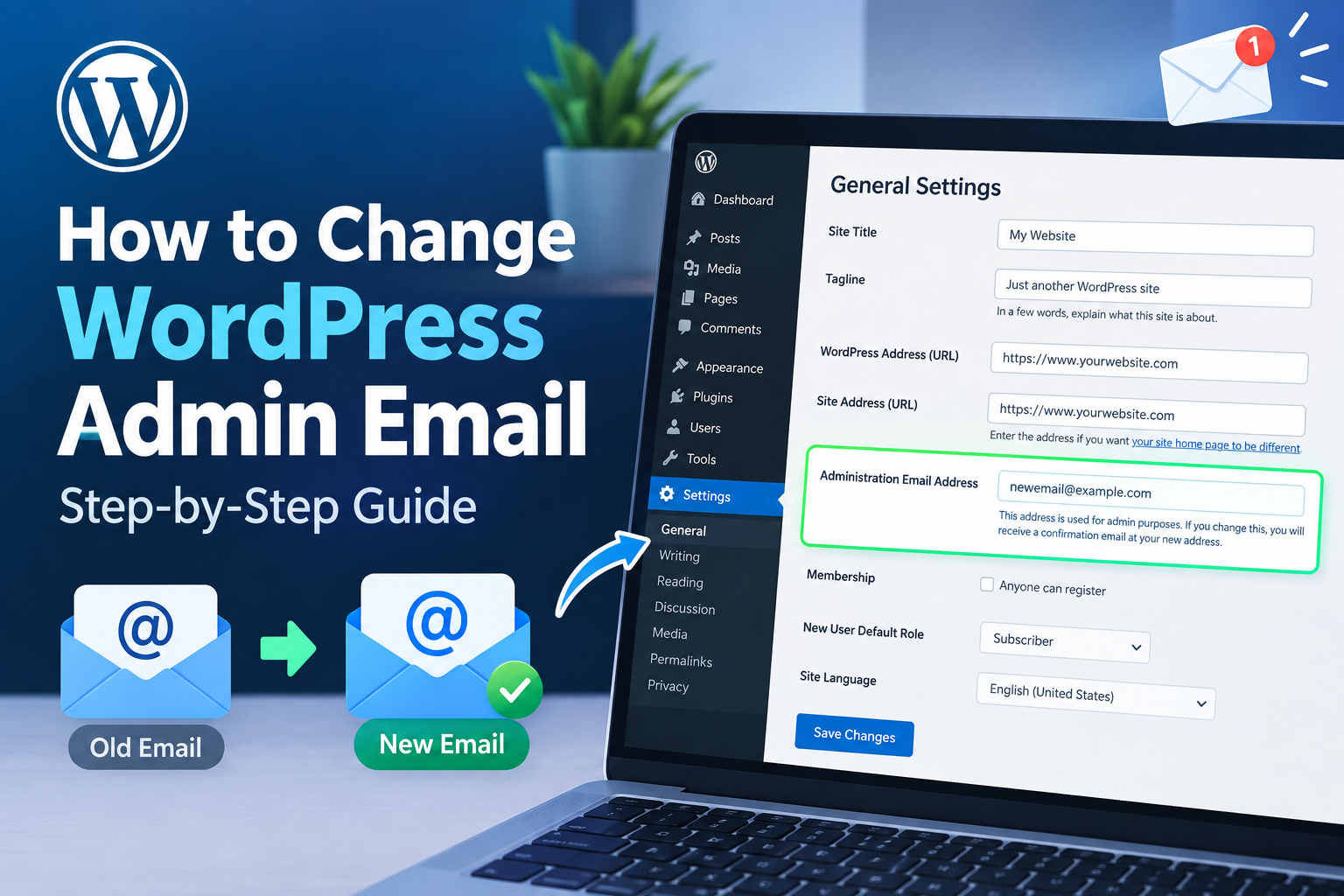
Settings → General
You will see several basic website settings on this page.
Step 3: Find the Site Title
Look for the Site Title field.
This field contains the current name of your website. Click inside the field and remove the old title.
Enter your new website title.
For example:
Old title: Tech World Blog
New title: Tech Trends
Keep your title short, clear, and relevant to your website.
Step 4: Update the Tagline
Below the Site Title field, you may see the Tagline option.
A tagline gives visitors additional information about your website.
For example:
Site Title: Tech Trends
Tagline: Latest Technology Tips and Guides
You can change the tagline or leave it blank if you do not need one.
Step 5: Save Your Changes
Scroll down the page and click Save Changes.
WordPress will save your new website title.
Open your website in a new browser tab and check whether the updated title appears correctly.
What If the Website Title Does Not Change?
Sometimes the title may not immediately appear in every location. Your WordPress theme can control where the site title is displayed.
If you use a page builder or a custom theme, check the theme’s customization options.
You can also go to:
Appearance → Customize
If your theme supports the Customizer, look for options such as Site Identity.
From there, you may be able to change the site title, tagline, logo, and site icon.
How to Change the Title With a Block Theme
Newer WordPress themes may use the Site Editor instead of the traditional Customizer.
Go to:
Appearance → Editor
Then open the relevant template or header area. Depending on your theme, you may find the site title block there.
Select the Site Title block and edit the displayed text.
The exact options can vary depending on your WordPress theme.
Does Changing the Site Title Affect SEO?
Changing your website title can affect how your brand is presented across your website. However, changing the Site Title setting is not the same as changing the SEO title of every individual page.
If your website uses an SEO plugin, you may have separate SEO title settings for posts and pages.
After changing your site title, review your homepage and important pages to make sure your branding remains consistent.
Tips for Choosing a Good Website Title
Choose a title that clearly represents your website. Avoid making it unnecessarily long or filling it with keywords.
A good title should be:
- Easy to remember
- Relevant to your website
- Consistent with your brand
- Simple to read
- Appropriate for your target audience
If you have an established brand, use the same spelling and capitalization across your website and other online profiles.
Final Thoughts
Changing the website title in WordPress is a straightforward task. In most cases, you only need to open Settings → General, update the Site Title, and save your changes.
If you use a newer block theme, you may instead need to use the Site Editor. Theme settings can also provide additional controls for displaying your website title.
After making the change, visit your website and check the header, browser tab, and other important areas to confirm that your new title is displayed correctly.
Leave a Reply