
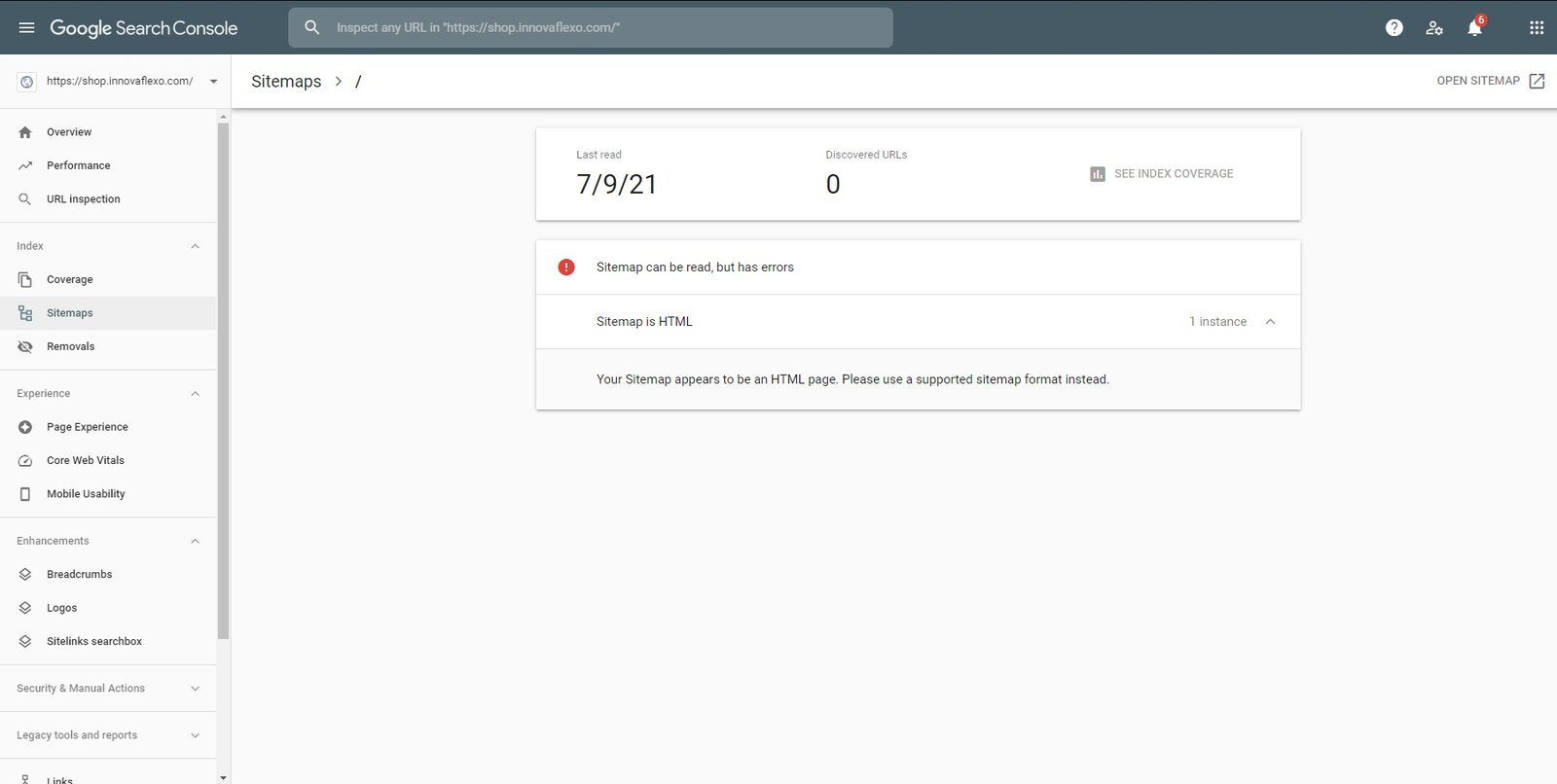
If you have submitted your website sitemap to Google Search Console but see a “Sitemap not found” error, Google cannot access the sitemap file at the submitted URL. This issue can prevent search engines from discovering your website pages efficiently.
A sitemap tells Google which important URLs are available on your website. Fortunately, most sitemap errors are easy to fix. In this guide, you will learn how to fix sitemap not found in Google Search Console, check your sitemap URL, verify your robots.txt file, and resubmit the sitemap correctly.
What Does “Sitemap Not Found” Mean?
The “Sitemap not found” message usually means Google Search Console tried to access your sitemap but could not find or retrieve it.
For example, you may submit:
https://example.com/sitemap.xml
But your website may actually use:
https://example.com/sitemap_index.xml
If the submitted URL does not exist, Google cannot process it.
Other causes can include incorrect URLs, server problems, WordPress plugin settings, blocked access, or temporary website errors.
Check Your Sitemap URL
The first step is to confirm that your sitemap actually exists.
Open your sitemap URL directly in a browser. Common sitemap addresses include:
https://yourdomain.com/sitemap.xmlhttps://yourdomain.com/sitemap_index.xmlhttps://yourdomain.com/wp-sitemap.xml
If the sitemap opens successfully, copy the exact URL and compare it with the URL submitted in Google Search Console.
For WordPress websites, your sitemap may be generated automatically by WordPress or an SEO plugin. Therefore, do not assume that every website uses the same sitemap address.
Check Your WordPress Sitemap Settings
If your website uses WordPress, check whether your sitemap is enabled.
SEO plugins can automatically create XML sitemaps. Open your SEO plugin settings and look for the XML sitemap option.
If you are using an SEO plugin, make sure sitemap generation is enabled. After making changes, open the sitemap URL again to confirm that it works.
For websites using WordPress’s built-in sitemap, the sitemap may be available at:
https://yourdomain.com/wp-sitemap.xml
If you recently changed SEO plugins, migrated your website, or changed permalink settings, your sitemap URL may also have changed.
Check the Sitemap in Your Browser
A quick browser test can help identify the problem.
Enter your sitemap URL into the browser address bar. If you see an XML sitemap containing URLs from your website, the file is available.
However, if you receive a 404 Not Found error, the sitemap does not exist at that address.
A 403 Forbidden error may indicate that access to the sitemap is being blocked. Server errors such as 500 or 503 can indicate hosting or server problems.
Fix the underlying issue before submitting the sitemap again.
Check Your Robots.txt File
Your robots.txt file can affect how search engines access your website.
Open:
https://yourdomain.com/robots.txt
Look for rules that may block important parts of your website.
You can also include your sitemap URL in robots.txt. For example:
Sitemap: https://yourdomain.com/sitemap.xml
Use the exact sitemap URL generated by your website.
If you are not sure which sitemap URL your website uses, check the sitemap first rather than adding a guessed URL.
Resubmit the Sitemap in Google Search Console
After confirming that the sitemap works, open Google Search Console and select your website property.
Go to Indexing > Sitemaps. In the sitemap section, enter the sitemap path, such as:
sitemap.xml
or:
sitemap_index.xml
Then click Submit.
Make sure you enter only the sitemap path if Search Console already displays your website domain next to the field.
Google will attempt to fetch the sitemap. If the file is accessible and correctly formatted, the sitemap should be processed.
Clear Cache and Check CDN Settings
Sometimes caching or CDN settings can interfere with sitemap access.
If you use a caching plugin, clear your website cache after changing sitemap settings. If your website uses a CDN or security service, check whether it is blocking automated search engine requests.
Your sitemap should be publicly accessible without requiring a login, password, or special authorization.
If a security plugin is blocking Googlebot or other legitimate crawlers, review its settings and remove unnecessary restrictions.
Check Your Website’s HTTPS Version
Make sure you submit the sitemap for the correct version of your website.
For example, if your website uses HTTPS, use:
https://example.com/sitemap.xml
instead of:
http://example.com/sitemap.xml
Also make sure the sitemap belongs to the correct domain and property in Google Search Console.
If your website redirects from HTTP to HTTPS, using the final HTTPS sitemap URL is generally the clearer choice.
Check for Sitemap Formatting Errors
A sitemap must follow XML formatting requirements. If the sitemap contains broken XML, invalid characters, or incorrect URL structures, Google may have difficulty processing it.
Open the sitemap and check whether it loads normally.
If your sitemap is generated automatically by WordPress or an SEO plugin, updating the plugin and checking its settings may resolve formatting problems.
Avoid manually editing an automatically generated sitemap unless you understand how the sitemap system works.
Test the Sitemap Again
After fixing the problem, return to Google Search Console and submit the sitemap again.
Give Google some time to process the file. Search Console may not update the status immediately.
If the sitemap continues showing an error, open the sitemap URL directly and verify that it is still accessible.
Also check whether your website has recently experienced downtime, DNS problems, hosting issues, or security restrictions.
Final Checklist
Before resubmitting your sitemap, check these items:
- The sitemap URL is correct.
- The sitemap opens in a browser.
- The sitemap returns a successful response.
- Your website is using the correct HTTPS version.
- The sitemap is not blocked by robots.txt.
- Your security plugin is not blocking crawlers.
- Your CDN is allowing access to the sitemap.
- Your WordPress sitemap settings are enabled.
- The sitemap contains valid XML.
- You submitted the correct sitemap in Google Search Console.
Conclusion
A “Sitemap not found” error in Google Search Console usually means that Google cannot access the sitemap URL you submitted. Start by opening the sitemap directly, confirming the correct URL, checking WordPress sitemap settings, reviewing robots.txt, and checking security or caching settings.
Once the sitemap is accessible, return to Google Search Console and submit the correct sitemap path again. Keeping your sitemap available and updated helps Google discover your website URLs more efficiently.

Leave a Reply