
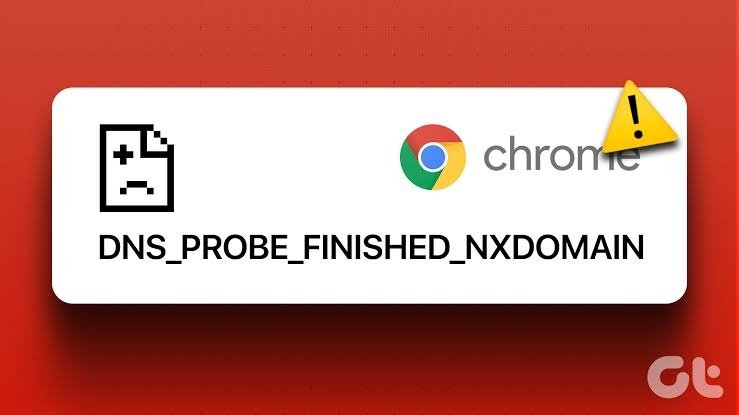
If you see the DNS_PROBE_FINISHED_NXDOMAIN error while opening a website, your browser cannot find the domain name’s IP address. This usually means there is a problem with DNS settings, your internet connection, or the domain itself. The good news is that you can often fix the issue with a few simple steps.
In this guide, you will learn how to fix DNS_PROBE_FINISHED_NXDOMAIN and get your website or browsing connection working again.
What Does DNS_PROBE_FINISHED_NXDOMAIN Mean?
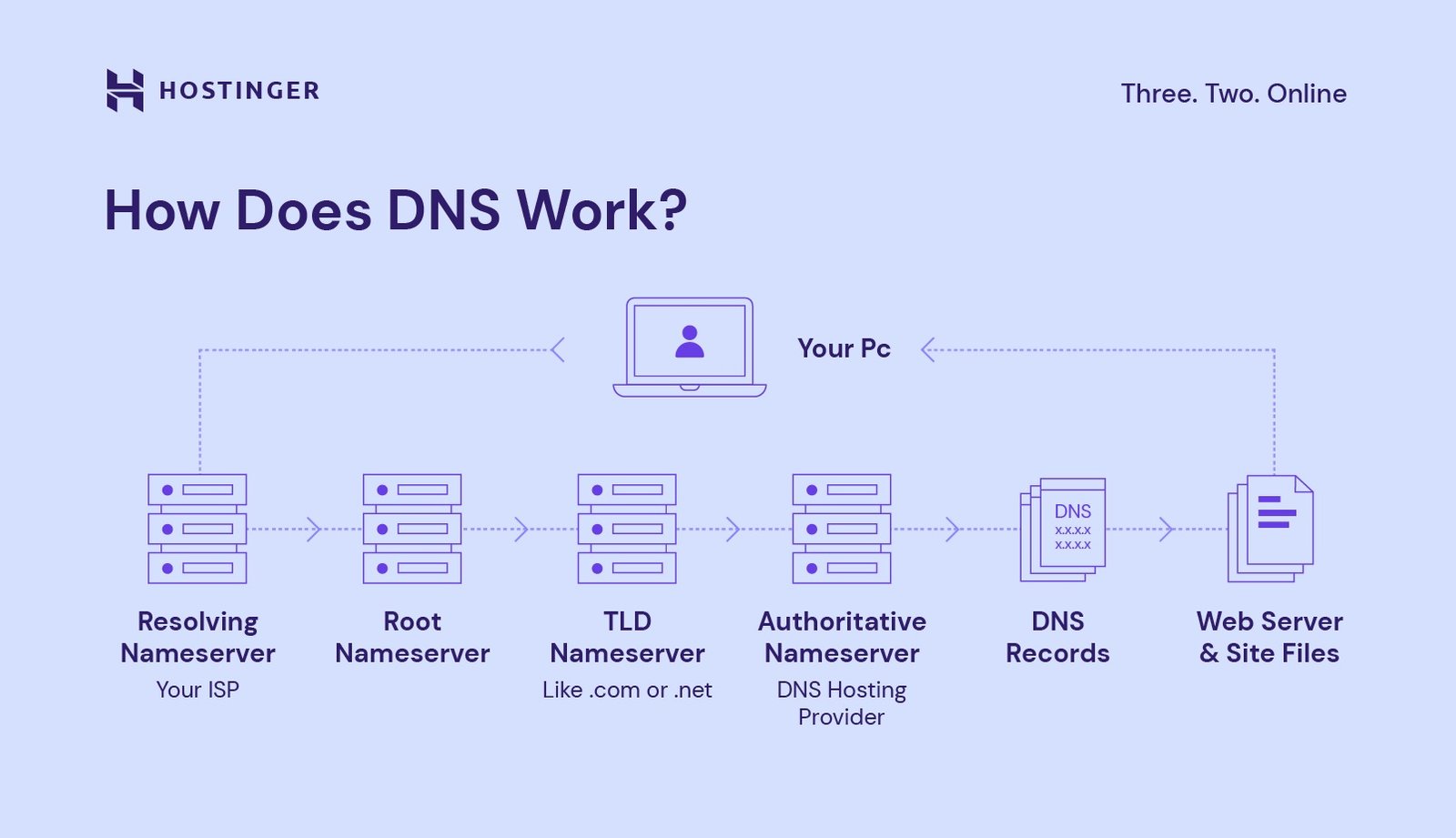
DNS stands for Domain Name System. It converts a website domain name into an IP address that your browser can understand.
The term NXDOMAIN means that the DNS system could not find the requested domain. When this happens, Chrome or another browser may display the DNS_PROBE_FINISHED_NXDOMAIN error.
The problem can occur because of incorrect DNS records, expired domains, DNS cache issues, or problems with your internet connection.
1. Check Your Internet Connection
Before changing DNS settings, make sure your internet connection is working properly. Try opening several other websites in your browser.
If other websites also fail to load, restart your router or modem. You can also disconnect and reconnect your device to Wi-Fi.
If other websites work normally but one specific domain shows the error, the problem is more likely related to that domain or its DNS configuration.
2. Restart Your Router
A simple router restart can sometimes solve temporary DNS problems.
Turn off your router and wait for around 30 seconds. Then turn it back on and wait for the internet connection to become active.
After that, open the website again and check whether the DNS_PROBE_FINISHED_NXDOMAIN message has disappeared.
3. Clear Your DNS Cache
Your computer stores DNS information to make websites load faster. Sometimes this cached information becomes outdated or incorrect.
On Windows, open Command Prompt as an administrator and run:
ipconfig /flushdnsYou should see a message confirming that the DNS Resolver Cache was successfully flushed.
Close and reopen your browser, then try visiting the website again.
4. Change Your DNS Server
Your current DNS server may be experiencing problems. Switching to a reliable public DNS service can help resolve the issue.
For example, you can use Google’s public DNS:
- Preferred DNS: 8.8.8.8
- Alternate DNS: 8.8.4.4
Another popular option is Cloudflare DNS:
- Preferred DNS: 1.1.1.1
- Alternate DNS: 1.0.0.1
After changing the DNS server, reconnect to your network and test the website again.
5. Check the Domain Name
A typing mistake in the domain name can also cause the NXDOMAIN error. Check the website address carefully and make sure there are no spelling mistakes.
If you recently registered the domain, its DNS settings may not be active yet. DNS changes can take some time to propagate across different networks.
You can also use your hosting provider’s DNS management tools to review the domain configuration. If you use Hostinger, check that your domain is correctly connected to the hosting account.
For related DNS configuration help, see [Hostinger DNS record configuration guide].
6. Check Your DNS Records
Incorrect or missing DNS records are another common reason for this error.
For a website, the domain usually needs the correct A record pointing to the server’s IP address. If you use a CNAME, make sure it points to the correct hostname.
If your nameservers were recently changed, verify that they are correctly configured at your domain registrar.
Avoid deleting DNS records unless you know what they are used for. An incorrect change can make your website, email, or other services stop working.
7. Restart Your Browser
Sometimes the browser itself may hold outdated information.
Close all browser windows and open the browser again. You can also try opening the website in Incognito or Private mode.
If the website works in Incognito mode, clearing your browser’s cached data may help.
8. Disable VPN or Proxy Temporarily
A VPN or proxy can sometimes use different DNS settings. If you are connected to a VPN, disconnect it temporarily and try opening the website again.
If the website starts working after disconnecting the VPN, the issue may be related to the VPN’s network or DNS configuration.
9. Check Whether the Domain Has Expired
If you own the affected website, log in to your domain registrar and check the domain’s expiration status.
An expired domain may stop resolving correctly, resulting in an NXDOMAIN error. Renew the domain if necessary and make sure the correct nameservers are still assigned.
Conclusion
The DNS_PROBE_FINISHED_NXDOMAIN error usually means that your browser cannot find the domain through DNS. You can often resolve it by checking your internet connection, restarting your router, flushing the DNS cache, changing DNS servers, and reviewing your domain’s DNS records.
If you recently registered a domain or changed its nameservers, remember that DNS propagation can take time. If the problem continues after checking your local settings, review the domain configuration with your registrar or hosting provider.
Following these steps should help you identify the cause and get the affected website working again.
Leave a Reply