
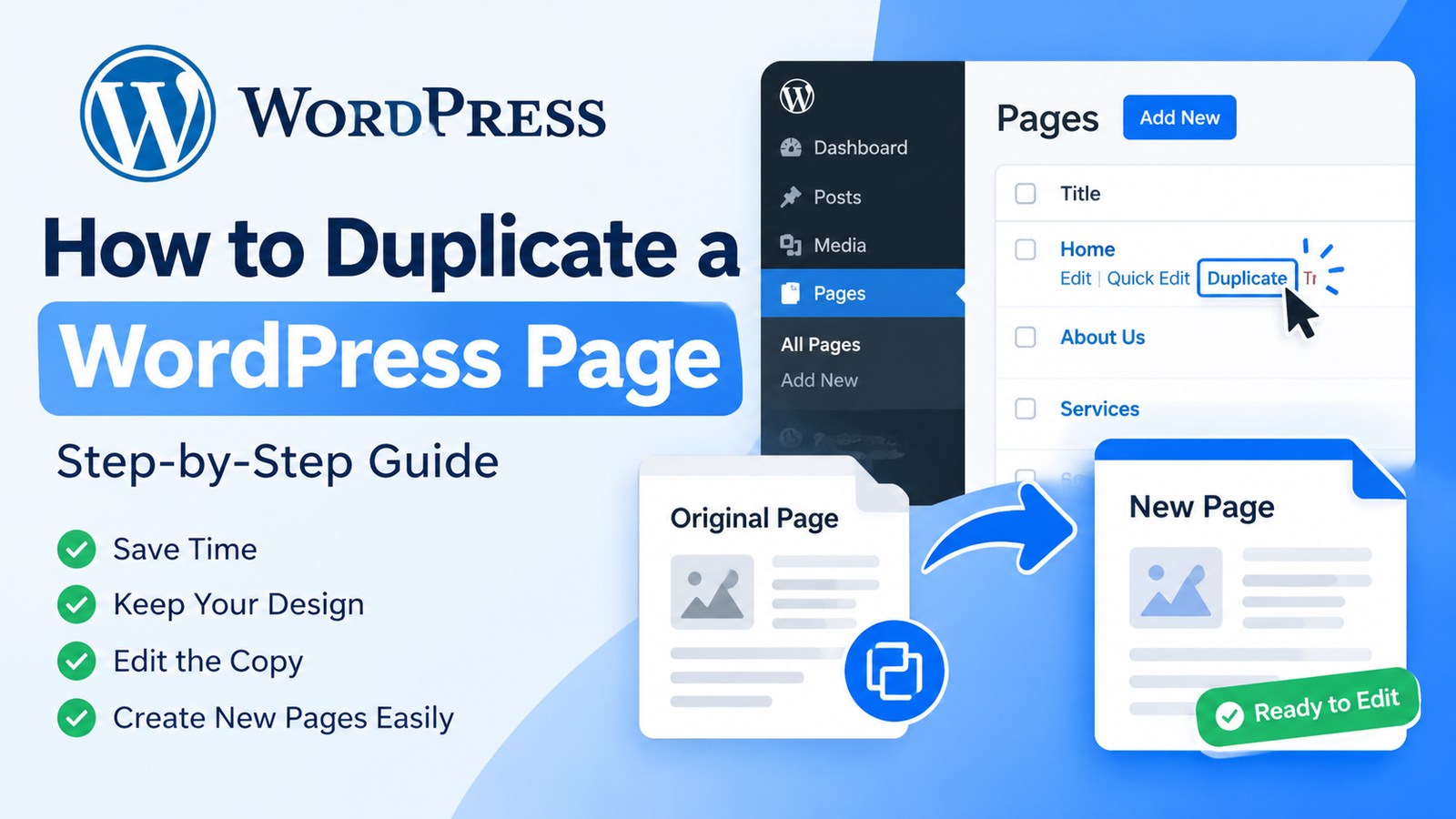
Sometimes you need to create a new WordPress page that looks almost identical to an existing page. Rebuilding the same layout, headings, images, buttons, and formatting from scratch can take a lot of time. Fortunately, WordPress gives you several ways to duplicate an existing page.
If you are wondering how to duplicate a WordPress page, the easiest method is usually to use a duplication plugin. You can also duplicate a page manually if you prefer not to install another plugin. In this guide, you will learn both methods step by step.
Why Duplicate a WordPress Page?
Duplicating a page can save time when you are creating similar content. For example, you may have several service pages with the same design but different text. Instead of starting from an empty editor, you can duplicate an existing page and replace the content you need.
This method can also be useful for landing pages, product pages, location pages, and website templates. It helps maintain a consistent design across your WordPress website.
Before making changes, it is a good idea to understand your site’s existing page structure. You can use this WordPress page duplication guide to create copies without rebuilding everything from the beginning.
Method 1: Duplicate a WordPress Page Using a Plugin
The easiest way to duplicate a page is by using a WordPress duplication plugin. Several plugins can add a duplicate or clone option directly to your Pages section.
Step 1: Open Your WordPress Dashboard
Log in to your WordPress website and open the dashboard.
From the left-hand menu, go to Plugins > Add New Plugin. Use the search box to find a trusted page duplication plugin.
Choose a plugin with good reviews, regular updates, and compatibility with your WordPress version.
Step 2: Install and Activate the Plugin
After selecting your preferred plugin, click Install Now.
Once the installation is complete, click Activate. The plugin may automatically add duplication options to your WordPress pages.
Step 3: Open Your Pages
Go to Pages > All Pages from the WordPress dashboard.
Find the page you want to copy. When you move your mouse over the page title, you may see additional options such as Duplicate, Clone, or New Draft.
The exact wording depends on the plugin you installed.
Step 4: Create a Duplicate
Click the available duplicate or clone option.
WordPress will create a copy of the original page. Usually, the copied page will be saved as a draft, allowing you to edit it before publishing.
Open the duplicate and change the page title, text, images, links, and other details as needed.
Method 2: Duplicate a Page Without a Plugin
If you do not want to install a plugin, you can manually copy the content from one page to another.
Open Pages > All Pages and edit the original page. Select the content inside the WordPress editor and copy it.
Next, create a new page by going to Pages > Add New Page. Paste the copied content into the new editor.
Depending on your editor and page builder, some layouts or special settings may not copy perfectly. You may need to manually recreate certain elements.
This method is useful for simple pages, but a duplication plugin is usually faster for complex layouts.
Check the Duplicate Page Before Publishing
After duplicating a page, do not publish it immediately. First, review the copied content carefully.
Change the page title and make sure the URL slug is different from the original page. Update images, headings, internal links, buttons, and calls to action.
You should also check the SEO title and meta description if you use an SEO plugin. Avoid publishing two pages with identical SEO content unless there is a specific reason.
Update the Page URL
A duplicated page should normally have its own unique URL.
For example, if the original page uses:
yourwebsite.com/services/
the new page should use a different slug, such as:
yourwebsite.com/web-design-services/
A unique URL helps visitors and search engines understand that the pages are separate.
Remove Unnecessary Content
A duplicate page may contain information that is only relevant to the original page. Review every section and remove anything that does not apply to the new page.
Pay special attention to contact information, pricing, product details, images, testimonials, and links.
This step helps prevent accidental publishing of incorrect information.
Preview the Page
Before publishing, click Preview to see how the duplicate page looks on your website.
Check the desktop and mobile versions. Make sure headings, images, buttons, spacing, and links display correctly.
If the page uses a page builder, check each section carefully because some builder settings may behave differently after duplication.
Publish the New Page
Once everything looks correct, click Publish.
Your duplicated page is now available on your website. If the page is intended for a specific audience or campaign, consider adding it to your navigation menu or linking to it from relevant pages.
Final Tips for Duplicating WordPress Pages
Always review duplicated pages before publishing them. Make sure the title, URL, content, images, SEO information, and links are unique and accurate.
If you frequently create similar pages, a reliable duplication plugin can save considerable time. For occasional simple pages, manually copying the content may be enough.
Remember that duplication should be used as a starting point rather than a replacement for editing. Personalizing the copied page gives visitors a better experience and helps avoid unnecessary duplicate content.
Conclusion
Learning how to duplicate a WordPress page can make website management much easier. You can use a duplication plugin to quickly create a copy or manually copy the content into a new page.
After creating the duplicate, update the title, URL, content, images, links, and SEO details before publishing. With these simple steps, you can create new WordPress pages faster while keeping your website organized and consistent.
Leave a Reply