
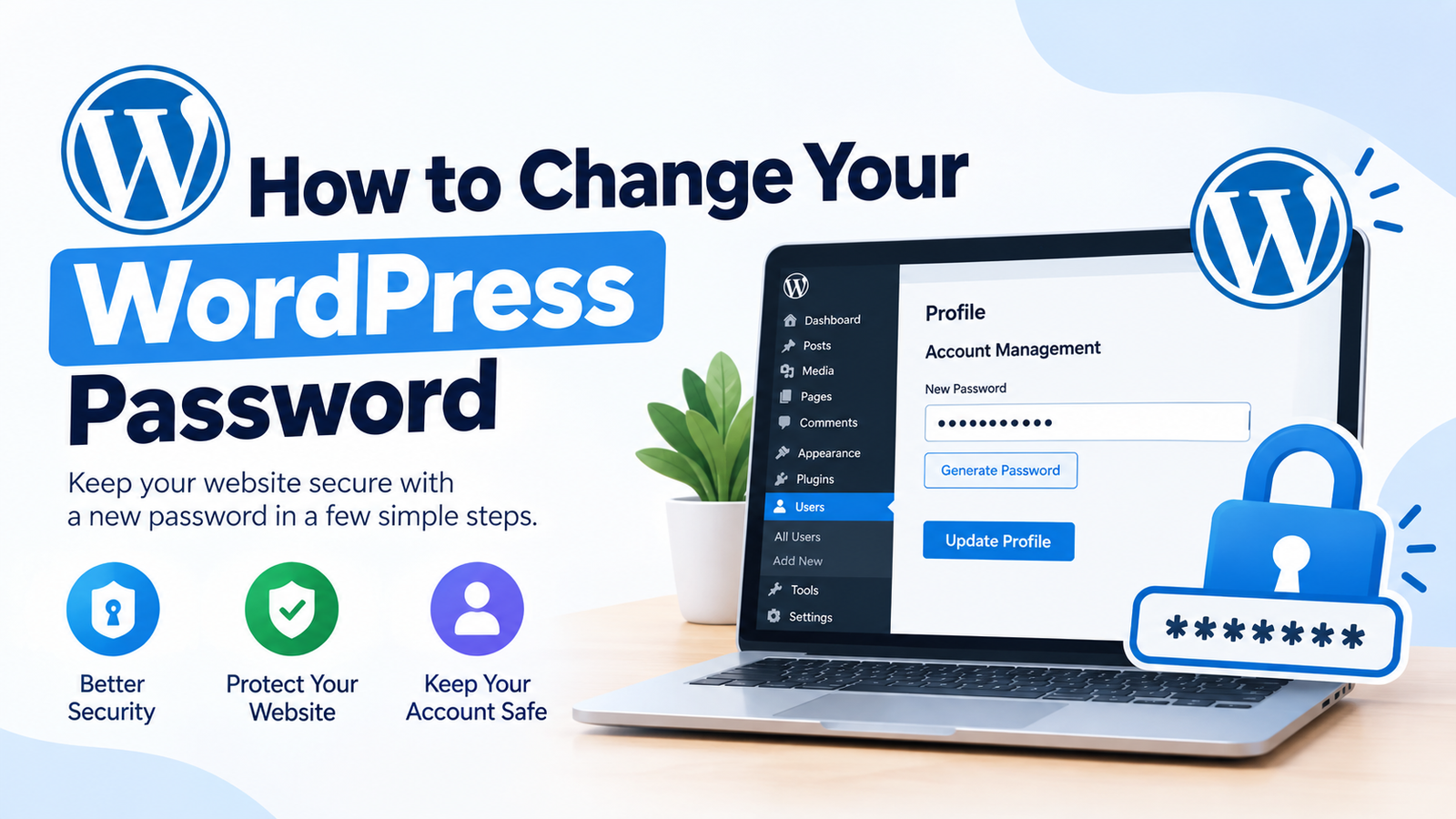
Changing your WordPress password is one of the easiest ways to improve the security of your website. Whether you think your current password may have been exposed, you want to update your login details regularly, or you simply forgot your password, WordPress provides several ways to create a new one.
A strong password can help protect your WordPress dashboard from unauthorized access. In this guide, you will learn how to change WordPress password from the dashboard, what to do if you forget your password, and how to choose a stronger password for better website security.
Why Should You Change Your WordPress Password?
Your WordPress password protects your website’s administration area. If someone gets access to your password, they may be able to change website settings, create users, publish content, or install unwanted plugins.
Changing your password regularly can reduce security risks. You should also change it if you have shared your login details with someone, suspect suspicious activity, or have used the same password on another website.
For better protection, consider using a password manager and enable additional security features when available.
How to Change WordPress Password From the Dashboard
The easiest way to change your WordPress password is through the WordPress admin dashboard.
Step 1: Log in to WordPress
First, log in to your WordPress website using your current username or email address and password. After logging in, you will see the WordPress dashboard.
Step 2: Open Your Profile
From the left-hand menu, go to Users and select Profile. If you are changing another user’s password and have administrator permissions, you can select All Users and open that user’s profile instead.
Step 3: Find the Password Section
Scroll down until you find the Set New Password section. WordPress will provide an option to generate a new password.
Click Set New Password and enter your preferred password. WordPress may also show a strength indicator to help you choose a secure password.
Step 4: Create a Strong Password
Use a long and unique password that combines uppercase and lowercase letters, numbers, and symbols. Avoid using easy-to-guess information such as your name, birthday, website name, or phone number.
Never reuse your WordPress password on multiple websites. A unique password makes it harder for one compromised account to affect your other accounts.
Step 5: Save the New Password
After entering your new password, scroll down and click Update Profile. WordPress will save the new password.
You can now use your new password the next time you log in to your WordPress dashboard.
How to Change WordPress Password If You Forgot It
If you cannot remember your existing password, you can reset it from the WordPress login page.
Go to your WordPress login page and click Lost your password? Enter your username or email address and submit the form.
WordPress will send password-reset instructions to the email address associated with your account. Open the email, follow the provided link, and create a new password.
If you do not receive the email, check your spam or junk folder. You should also make sure that you entered the correct email address.
Tips for a More Secure WordPress Password
A strong password is an important part of website security. Consider these simple practices:
- Use a long and unique password.
- Avoid common words and predictable patterns.
- Do not share your administrator password.
- Never reuse passwords across different websites.
- Use a password manager to store complex passwords.
- Enable two-factor authentication if your security setup supports it.
- Keep WordPress, themes, and plugins updated.
You can also secure your WordPress login by limiting unnecessary administrator accounts and removing old users who no longer need access.
What If You Cannot Access Your Email?
If you have forgotten your password and no longer have access to the email account connected to WordPress, the normal password-reset process may not work.
In this situation, you may need to contact your hosting provider or use another authorized recovery method. Advanced users may also be able to reset the password through their hosting database tools, but this should be done carefully because incorrect database changes can affect your website.
Final Thoughts
Knowing how to change WordPress password is an important basic skill for every WordPress website owner. You can change your password directly from the WordPress dashboard or use the password-reset option if you have forgotten it.
Always choose a strong, unique password and avoid sharing your login credentials. Combining a secure password with regular WordPress updates and additional security measures can help protect your website from unauthorized access.
Leave a Reply