
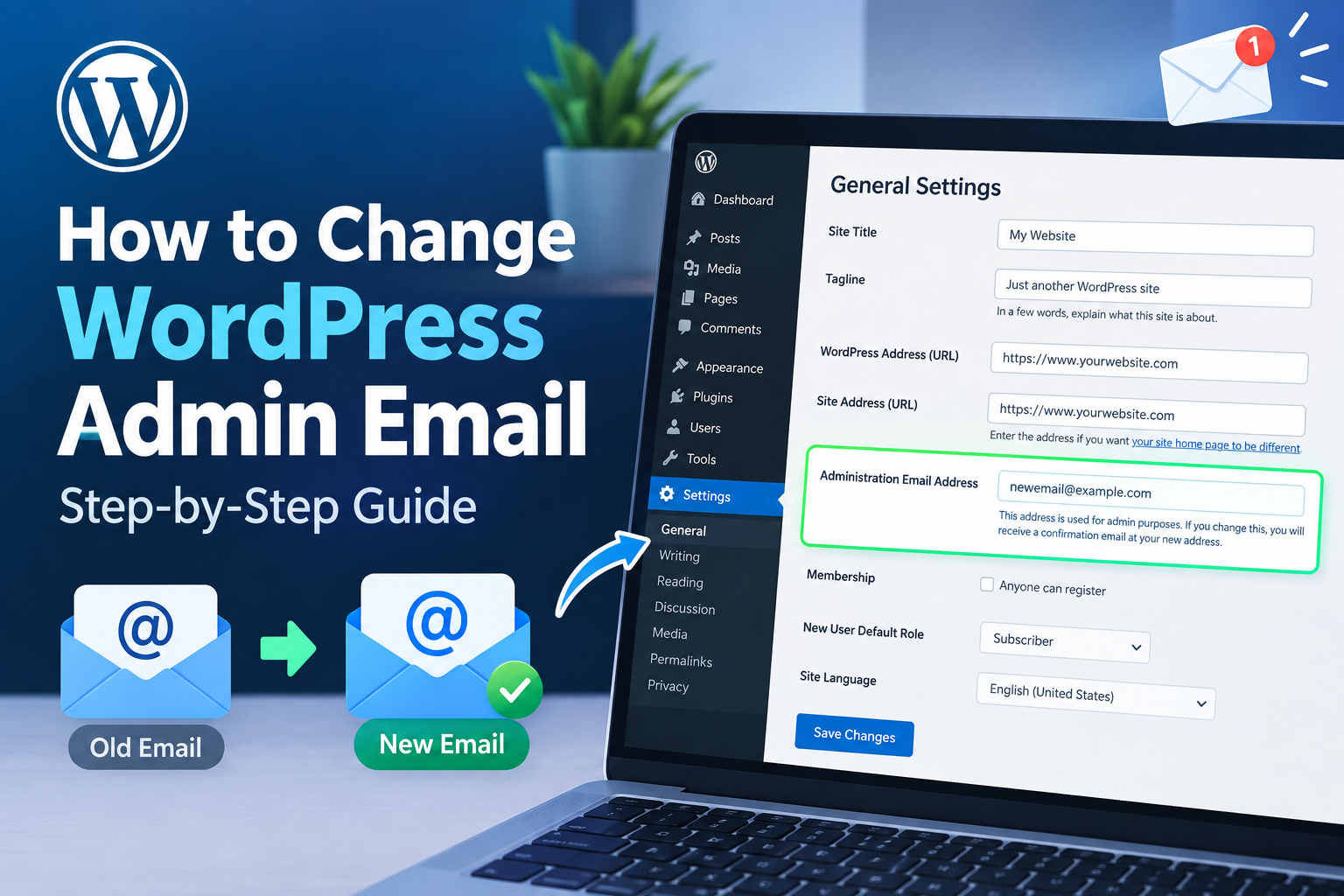
Your WordPress admin email is important because it is used for notifications, password resets, security alerts, and other website-related messages. If you have changed your business email or no longer use the address connected to your website, updating it should be part of your regular WordPress maintenance.
Fortunately, WordPress makes it relatively easy to change the administrator email address. You usually do not need to edit any website files or database settings. In this guide, you will learn how to change WordPress admin email safely and verify that the new address is working correctly.
Why Change Your WordPress Admin Email?
There are several reasons you may want to update your WordPress admin email. You might have created your website using a personal email and now want to use a professional business address.
You may also have changed your email provider, taken over an existing website, or want another administrator to receive important website notifications.
Keeping the correct email address connected to WordPress is important because you may need it to recover your account or receive security-related notifications.
How to Change WordPress Admin Email
The easiest method is through your WordPress dashboard. Before making the change, make sure you have access to the new email address because WordPress may send a confirmation message.
Step 1: Log In to WordPress
First, log in to your WordPress website using an administrator account.
After logging in, you will see the WordPress dashboard. This is where you can manage your website settings, plugins, themes, users, and other important options.
Step 2: Open General Settings
From the left-hand menu, go to Settings and then select General.
On this page, you will find several basic website settings, including the site title, WordPress address, site address, administration email address, membership settings, and other options.
Look for the field labeled Administration Email Address.
Step 3: Enter Your New Email Address
Replace the existing email address with the new address you want to use.
For example, if your old address is old@example.com, replace it with your new professional address.
Make sure you enter the email address correctly. A typing mistake could prevent you from receiving the confirmation message.
Step 4: Save the Changes
After entering the new email address, scroll down and click Save Changes.
WordPress may send a confirmation email to the new address. Depending on your WordPress version and website configuration, the new address may not become active until the change has been confirmed.
If you do not see the email in your inbox, check your spam or junk folder.
Verify the New Email Address
After saving the change, check the new email account for a confirmation message from your WordPress website.
Open the email and follow the confirmation instructions if required.
This step is important because it confirms that you have access to the new address and helps ensure that future WordPress notifications can reach you.
If the confirmation email does not arrive, wait a few minutes and check your spam folder. You should also make sure that your website can send emails correctly.
What If You Cannot Receive the Confirmation Email?
Sometimes WordPress emails do not arrive because the website’s hosting server has poor email delivery or the domain has not been configured correctly.
In this situation, check your website’s email configuration. Using a reliable SMTP service can often improve the delivery of WordPress emails.
You should also check whether your hosting provider has any restrictions on outgoing email.
If you still cannot receive the message, you may need to contact your hosting provider or WordPress administrator for assistance.
Can You Change the Admin Email Without Access to the Old Email?
In many cases, you can enter a new administration email from the WordPress dashboard if you can still access the administrator account.
However, WordPress may require confirmation of the new address before completing the change. If you cannot access the dashboard, alternative methods may involve your hosting control panel, database, or another administrator account.
These methods require more technical knowledge, so creating a backup before making database changes is recommended.
Final Thoughts
Changing your WordPress administrator email is a simple task when you have access to your dashboard. Go to Settings > General, update the Administration Email Address, save the changes, and complete any required confirmation.
Keeping your admin email current helps you receive important notifications and makes account recovery easier when you need it. Before finishing the process, always verify that the new email address is correct and that WordPress messages are reaching your inbox.
Leave a Reply