
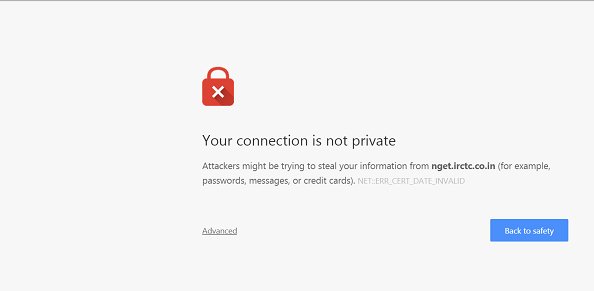
An SSL certificate protects the connection between your website and its visitors. When SSL is working correctly, your website should normally load with HTTPS instead of HTTP.
However, sometimes website owners see warnings such as “Not Secure,” certificate errors, or an HTTPS connection that does not work properly. If you are searching for how to fix SSL not working on Hostinger, there are several things you can check.
This guide explains the most common solutions step by step.
What Is SSL?
SSL stands for Secure Sockets Layer. Modern websites generally use TLS, which is the technology behind secure HTTPS connections.
An SSL certificate helps encrypt information transferred between a visitor’s browser and your website. It also allows your website to use an HTTPS address.
Without a properly configured certificate, visitors may see a security warning when opening your website.
1. Check Whether SSL Is Enabled
The first step is to check your SSL settings in Hostinger.
Log in to your Hostinger account and open the website or domain management area. Find the SSL section and check whether an SSL certificate has been installed for your domain.
If the certificate is not active, follow Hostinger’s instructions to install or activate the available SSL certificate.
2. Check Your Domain DNS Records
Incorrect DNS settings are another common reason SSL may not work.
Your domain must point to the correct server. If your DNS records point somewhere else, Hostinger may not be able to properly serve your website or issue the certificate.
Check your A record and other relevant DNS records. Make sure they match the configuration provided by your hosting setup.
If you recently changed DNS records, allow time for those changes to propagate.
3. Make Sure You Are Using HTTPS
After SSL is active, test your website using HTTPS.
For example, instead of visiting:
http://yourdomain.com
try:
If HTTPS opens successfully, the certificate may already be working.
You should also test both the www and non-www versions of your domain if you use both.
4. Check SSL Certificate Status
Open your Hostinger SSL management area and check the certificate status.
If the certificate is pending, failed, expired, or not installed correctly, follow the available instructions to resolve the issue.
Sometimes a certificate needs to be reinstalled or renewed. However, avoid repeatedly changing settings without checking the actual certificate status first.
5. Clear Your Browser Cache
Sometimes your browser stores old security or redirect information.
If you recently fixed your SSL configuration but still see an error, try opening your website in an incognito or private browser window.
You can also clear your browser cache and then test the website again.
This simple step can help determine whether the problem is caused by your browser rather than the website’s current SSL configuration.
6. Check for Mixed Content
Your SSL certificate can be active while your website still shows security warnings.
This may happen because some website resources, such as images, scripts, stylesheets, or videos, are still loaded using HTTP.
This issue is called mixed content.
Make sure your website resources use HTTPS URLs. If you use WordPress, check your website URL settings and update old HTTP links where necessary.
7. Enable HTTPS Redirect
Once SSL is working correctly, you may want visitors to automatically use HTTPS.
A redirect can send visitors from the HTTP version of your website to the secure HTTPS version.
Before enabling a redirect, make sure the SSL certificate is already active. Otherwise, visitors may be redirected to an HTTPS page that still produces a certificate error.
8. Check Your Domain Configuration
If you recently connected a new domain to Hostinger, verify that the domain is correctly connected to the intended website.
Check the domain’s DNS records, nameservers, and hosting configuration.
A mismatch between your domain’s DNS settings and Hostinger’s server can prevent the website and SSL certificate from working correctly.
Common SSL Errors on Hostinger
You may encounter different errors when SSL is not configured correctly. Some common examples include:
- “Your connection is not private”
- “Not Secure”
- SSL certificate errors
- HTTPS redirect problems
- Certificate not found
- Mixed content warnings
The exact solution depends on the error you receive.
For a structured troubleshooting process, follow these Hostinger HTTPS troubleshooting steps and check your SSL status, DNS configuration, HTTPS address, and website resources.
Final Thoughts
If SSL is not working on Hostinger, do not immediately assume that the certificate itself is broken. DNS configuration, domain settings, browser cache, mixed content, and HTTPS redirects can also cause problems.
Start by checking the SSL status and DNS records. Then test your website with HTTPS and look for mixed content or redirect issues.
With these steps, you can identify the most common causes of SSL problems and get your website working securely over HTTPS.



Leave a Reply