
Introduction
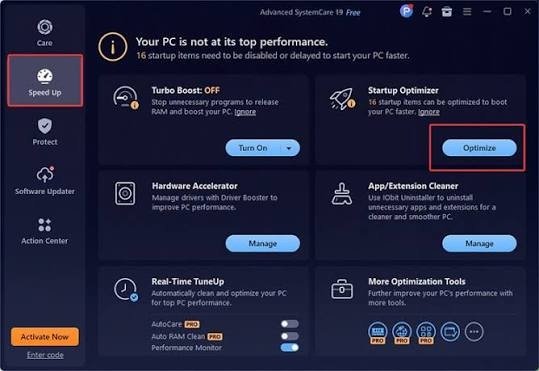
Some apps open automatically every time you sign in to Windows 11. A few are useful, but too many can slow startup and clutter your desktop. You can control most of them through Windows Settings or Task Manager without uninstalling the programs.
Disable startup apps in Settings
Open Settings and select Apps, then Startup. You will see apps that can launch when you sign in. Turn off apps you do not need immediately, such as optional chat tools or game launchers. If you are unsure what an app does, search for its name before changing the setting.
Use Task Manager for more details
Right-click the Start button and open Task Manager, or press Ctrl + Shift + Esc. Select Startup apps in the sidebar. Review the app name, status, and startup impact where available. Select an unnecessary app and choose Disable. This prevents it from launching automatically; it does not remove the app from your computer.
Which apps should stay enabled?
Security software, touchpad utilities, audio tools, backup applications, or other hardware-related utilities may need to run at startup. Their importance depends on your computer and how you use it. Avoid disabling unfamiliar Microsoft or hardware entries without checking their purpose.
Stop an app from its own settings
Some programs have an option such as Launch at startup, Start with Windows, or Open when I sign in. Open the app’s settings and turn off that option if you prefer. If the program continues to launch, check its entry in Windows Startup settings as well.
Check the result
Restart your computer after making a few changes. Notice whether startup feels faster and whether any useful feature has stopped working. You can return to the same menu and enable an app again whenever needed. Change a small number of entries at a time so it is easier to identify the cause of any issue.
Conclusion
Windows 11 lets you manage automatic launches from Settings and Task Manager. Disable only apps you recognize and do not need at sign-in. Keeping startup lean can make the desktop feel less cluttered and may improve the time it takes to become ready.
Leave a Reply