
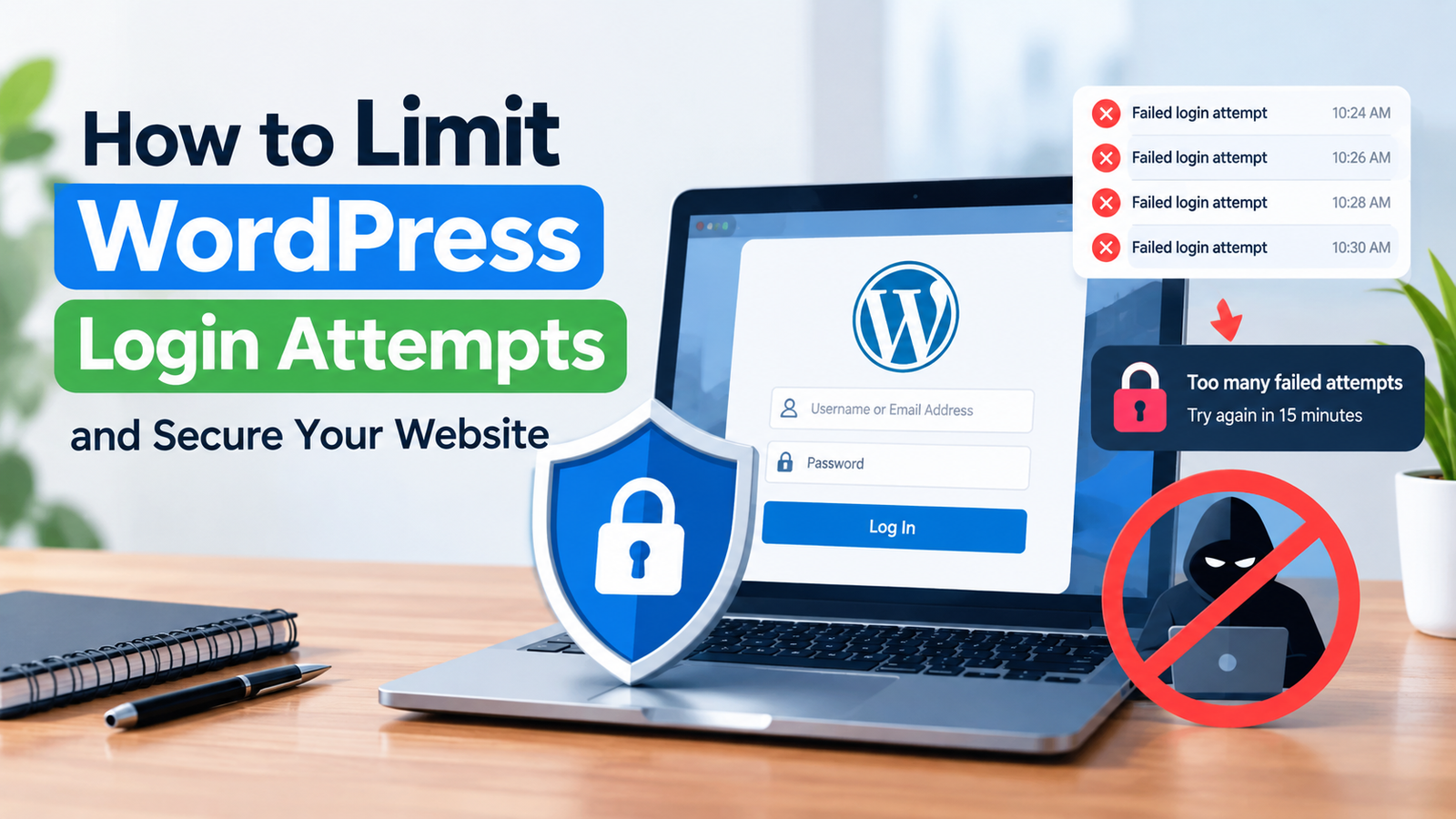
WordPress websites can become targets for automated login attacks. Bots may repeatedly try different usernames and passwords until they find the correct combination. These repeated attempts are known as brute-force attacks. If your website allows unlimited login attempts, attackers have more opportunities to guess your credentials.
Learning how to limit WordPress login attempts is a simple way to improve website security. By restricting the number of failed login attempts, you can temporarily block users or bots that repeatedly enter incorrect passwords.
In this guide, you will learn why login limits are important and how to add this protection to your WordPress website.
Why Should You Limit WordPress Login Attempts?
WordPress does not always limit login attempts by default. This means someone can potentially try to log in many times using different password combinations.
A login limit adds an extra security layer. For example, you can allow only five failed login attempts. After the limit is reached, the IP address can be temporarily blocked.
This makes automated password-guessing attacks much harder.
Limiting login attempts can also reduce unnecessary server requests. A large number of automated login attempts can consume server resources, especially on websites with limited hosting resources.
Use a WordPress Security Plugin
The easiest method for most beginners is to use a WordPress security plugin. Many security plugins include login protection, firewall features, malware scanning, and other security tools.
First, log in to your WordPress dashboard. Go to Plugins and select Add New Plugin.
Search for a reputable security plugin that provides login attempt protection. Install the plugin and activate it.
After activation, open the plugin’s security settings. Look for an option such as Login Protection, Login Attempts, Brute Force Protection, or a similar setting.
The exact name and location can vary depending on the plugin you use.
Configure the Login Attempt Limit
Once you find the login protection settings, you can choose how many failed attempts are allowed.
For example, you might set the limit to five failed attempts.
A useful configuration could look like this:
- Maximum failed attempts: 5
- Lockout duration: 15 minutes
- Longer lockout after repeated failures: Enabled
- Email notification: Enabled, if available
After five incorrect passwords, the user or IP address may be temporarily blocked.
Avoid choosing an extremely low number because legitimate users can sometimes forget their passwords. A reasonable limit can provide protection without creating unnecessary frustration.
Set a Temporary Lockout Period
A temporary lockout is another important part of login protection.
Instead of permanently blocking an IP address after several failed attempts, WordPress can temporarily prevent additional login attempts.
For example, after five failed attempts, the account or IP address could be locked for 15 minutes.
If more failed attempts occur after the lockout expires, the security plugin can increase the lockout period.
This approach helps protect your website while still allowing genuine visitors to recover access.
Enable Notifications
Some WordPress security plugins can notify administrators when repeated login attempts are detected.
This feature can be useful because it helps you identify unusual activity.
If you receive frequent notifications about failed login attempts, review your security settings. You may also want to check whether attackers are targeting common usernames or trying to access specific accounts.
However, avoid enabling excessive notifications if your website receives a large amount of automated traffic. Too many alerts can make important security warnings harder to notice.
Use Strong Usernames and Passwords
Limiting login attempts is helpful, but it should not be your only security measure.
Use strong and unique passwords for administrator accounts. A strong password should contain a combination of letters, numbers, and special characters.
Avoid simple passwords based on your website name, personal information, or common words.
You should also avoid using obvious administrator usernames. Attackers often target common usernames because they are easier to guess.
For additional protection, consider using two-factor authentication if your security plugin supports it.
Review Your Security Settings Regularly
After configuring login limits, check your settings occasionally.
Make sure the plugin is active and that the login protection feature is still enabled. WordPress plugins can receive updates that change the location or name of security options.
It is also a good idea to keep WordPress, plugins, and themes updated. Outdated software can contain security vulnerabilities that attackers may exploit.
Your overall protection should include strong passwords, updates, backups, and login security.
Test Your Login Protection
After configuring the feature, you can test it carefully.
Do not repeatedly enter incorrect passwords on your main administrator account unless you know the lockout settings. Instead, follow the plugin’s testing instructions if available.
Confirm that failed login attempts are being recorded and that the temporary lockout works as expected.
If you accidentally lock yourself out, wait for the lockout period to expire or use the recovery method provided by your security plugin or hosting provider.
Final Thoughts
Learning how to limit WordPress login attempts is an effective step toward protecting your website from brute-force attacks. A login limit reduces the number of password guesses an attacker can make and can also reduce unnecessary login traffic.
For beginners, a trusted security plugin is usually the easiest solution. Configure a reasonable failed-attempt limit, use temporary lockouts, enable useful notifications, and protect administrator accounts with strong passwords.
You can also improve your website protection by reviewing your WordPress login security settings, keeping your software updated, using backups, and enabling two-factor authentication.
With these basic security practices in place, your WordPress website can be better protected against repeated unauthorized login attempts.
Leave a Reply