
Introduction
Chrome stores cached images and files so websites can load faster on later visits. However, an outdated or damaged cached file can sometimes cause display or loading problems. Clearing the cache may help, and it usually does not require deleting your saved passwords or bookmarks.
Open Chrome’s clear-data settings
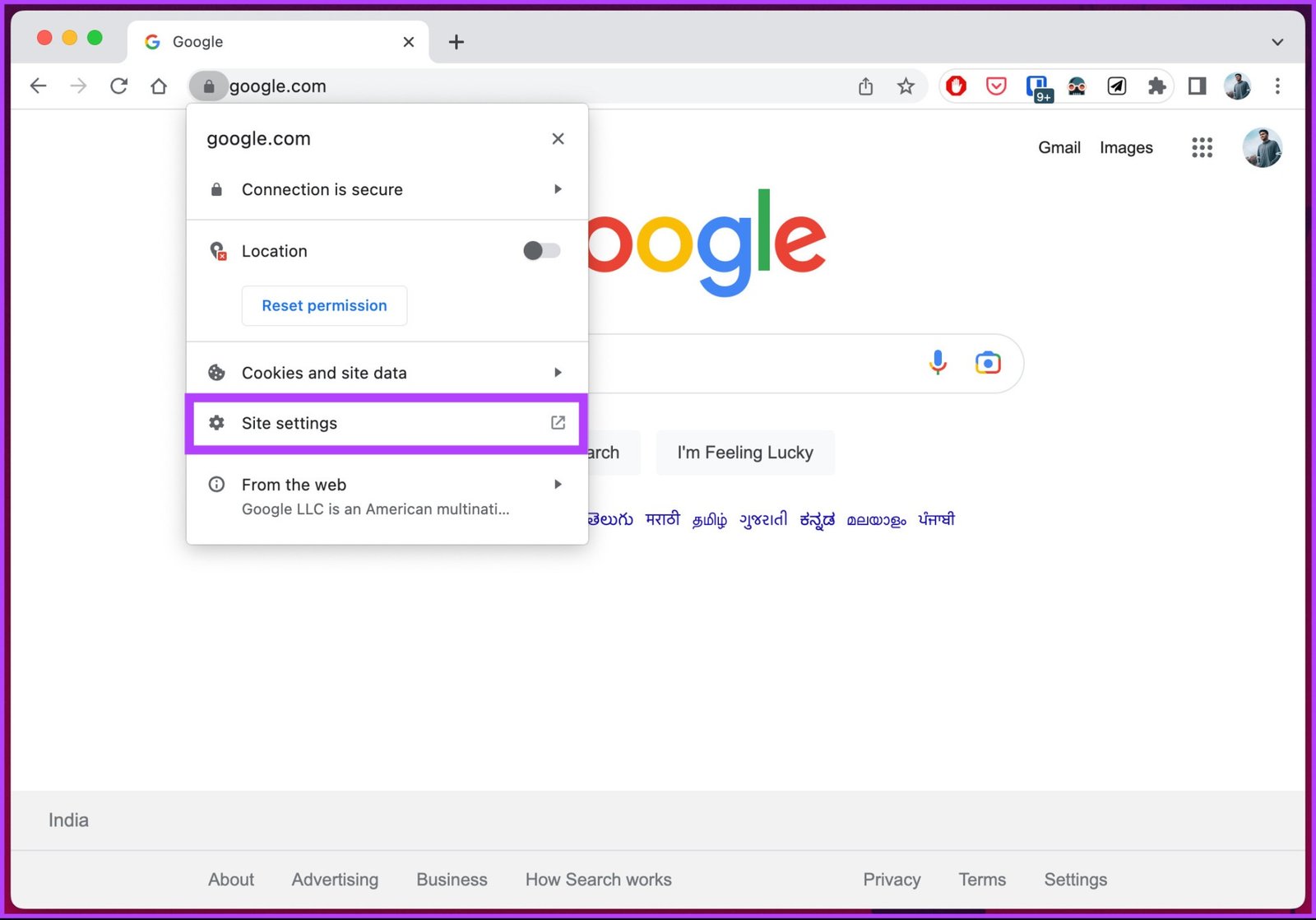
Open Chrome on your computer. Select the three-dot menu, choose Delete browsing data, and review the available options. You can also open the dialog with Ctrl + Shift + Delete on Windows or the corresponding keyboard shortcut on your Mac.
Choose the right time range
Select a time range that suits your situation. If a website has only recently started behaving incorrectly, a shorter range may be enough. To remove all cached files in the available history, choose All time. The exact labels may change slightly as Chrome updates.
Select cached images and files
Check Cached images and files. Review the other boxes carefully before continuing. Cookies and other site data can sign you out of websites, while browsing history removes records you may want to keep. Leave those options unchecked if your goal is only to clear the cache. Select Delete data when ready.
Reload the website
Return to the affected website and reload it. The first visit may be slower because Chrome needs to download some files again. If the issue remains, test the site in an Incognito window, disable a recently added extension, or check whether the website itself is experiencing a problem.
When should you clear the cache?
You do not need to clear the cache on a strict daily schedule. Consider doing it when a site shows old styling, images fail to load, or a page behaves differently from expected. If the problem affects only one website, its site data or a browser extension may be involved instead.
Conclusion
Open Chrome’s browsing-data controls, choose the correct time range, and select only cached images and files if you want to preserve other browsing data. Reload the site and check whether the problem is resolved.

Leave a Reply