
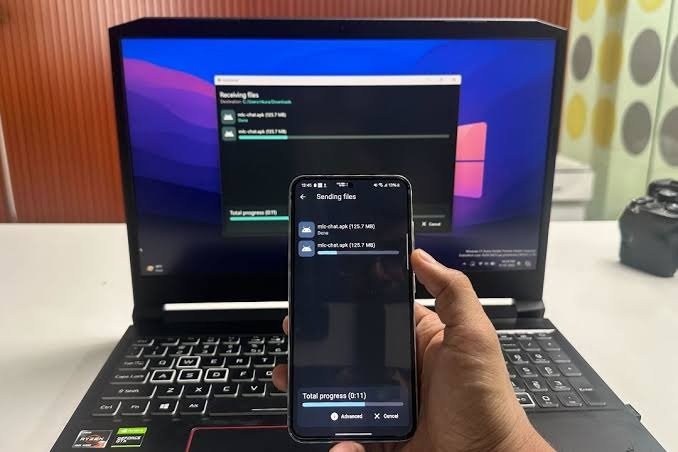
Transferring files from an Android phone to a computer is a common task. People often need to move photos, videos, documents, music, and other important files. However, using a USB cable is not always convenient.
The good news is that you can transfer files without connecting your phone to your computer with a cable. Several wireless methods make the process simple and fast.
In this guide, you will learn how to transfer files from Android to PC wirelessly using different tools. These methods work well for beginners and regular computer users.
1. Use Google Quick Share
Google Quick Share is one of the easiest ways to send files between Android devices and supported Windows computers. It allows users to share photos, videos, documents, and other files wirelessly.
Follow these steps:
- Download Quick Share for Windows from its official website.
- Install the application on your computer.
- Turn on Wi-Fi and Bluetooth on both devices.
- Open Quick Share on your Windows PC.
- Select the files you want to send on your Android phone.
- Tap the Share option and choose Quick Share.
- Select your computer from the available devices.
- Accept the transfer request on your PC if required.
Your selected files will appear on your computer after the transfer finishes.
Quick Share is a good option for users who regularly move files between Android and Windows.
2. Use Microsoft Phone Link
Microsoft Phone Link is another useful tool for connecting an Android phone to a Windows computer.
It allows users to access certain phone features from their PC. Depending on the phone model and Windows version, supported features may include notifications, messages, photos, and file sharing.
Here is how to get started:
- Open Phone Link on your Windows computer.
- Install or open Link to Windows on your Android phone.
- Sign in using your Microsoft account.
- Follow the instructions to connect both devices.
- Grant the permissions requested by the application.
- Open the supported sharing or photo features.
Phone Link is especially useful for people who want to manage their phone and computer together.
However, available features can vary depending on the Android device and Windows version.
3. Transfer Files Using Bluetooth
Bluetooth is a simple wireless option for transferring smaller files. It does not require a USB cable or an internet connection.
To use Bluetooth, follow these steps:
- Open Settings on your Windows PC.
- Go to Bluetooth and devices.
- Turn on Bluetooth.
- Enable Bluetooth on your Android phone.
- Pair your phone with your computer.
- Open Bluetooth settings on Windows.
- Select Receive files.
- Choose a file on your Android phone and share it through Bluetooth.
The computer will receive the selected file after the transfer is completed.
Bluetooth is useful for documents and smaller images. However, transferring large videos may take longer than using other wireless methods.
4. Use LocalSend
LocalSend is a free, open-source application that helps users share files between different devices on the same local network.
It supports Android, Windows, macOS, and other platforms.
Follow these steps:
- Download LocalSend on your Android phone.
- Install LocalSend on your Windows computer.
- Connect both devices to the same Wi-Fi network.
- Open the application on both devices.
- Select the files you want to share on your phone.
- Choose your computer from the available devices.
- Accept the incoming transfer if requested.
LocalSend is a convenient option for transferring multiple files without using cloud storage.
It is also useful for people who prefer open-source software.
5. Use Cloud Storage Services
Cloud storage is another way to move files from Android to a computer. Services such as Google Drive and Microsoft OneDrive allow users to upload files from their phones and download them on a PC.
The process is simple:
- Open Google Drive or OneDrive on your Android phone.
- Upload the photos, videos, or documents you need.
- Open the same service on your computer.
- Sign in using the same account.
- Find your uploaded files.
- Download them to your computer.
This method is useful when your phone and computer are in different locations.
However, cloud storage requires an internet connection. Large files may also take time to upload and download.
Which Wireless File Transfer Method Is Best?
The best method depends on your needs.
- Quick Share: Best for convenient transfers between supported Android and Windows devices.
- Phone Link: Useful for connecting your phone with your Windows computer.
- Bluetooth: Suitable for smaller files and occasional transfers.
- LocalSend: Great for sharing files across devices on the same network.
- Google Drive: Helpful when transferring files between devices in different locations.
Consider file size, transfer speed, internet availability, and device compatibility before choosing a method.
Tips for Safe and Fast File Transfers
Follow these simple tips to improve your wireless file-sharing experience:
- Keep Wi-Fi and Bluetooth enabled when required.
- Use a trusted network when transferring private documents.
- Avoid accepting unexpected file-sharing requests.
- Keep your phone and computer applications updated.
- Check available storage space before transferring large files.
- Use a secure Wi-Fi network for confidential information.
For better wireless file sharing solutions, always choose a trusted application and check the destination device before sending important documents.
Conclusion
Transferring files from Android to a Windows PC wirelessly is easier than many people think. You do not always need a USB cable to move photos, videos, and documents.
Quick Share is a convenient option for supported devices, while LocalSend provides flexible local-network sharing. Bluetooth works for smaller files, and cloud storage is useful when devices are far apart.
Choose the method that matches your requirements and device compatibility. With the right application, you can move files between your Android phone and PC quickly and conveniently.
Leave a Reply