
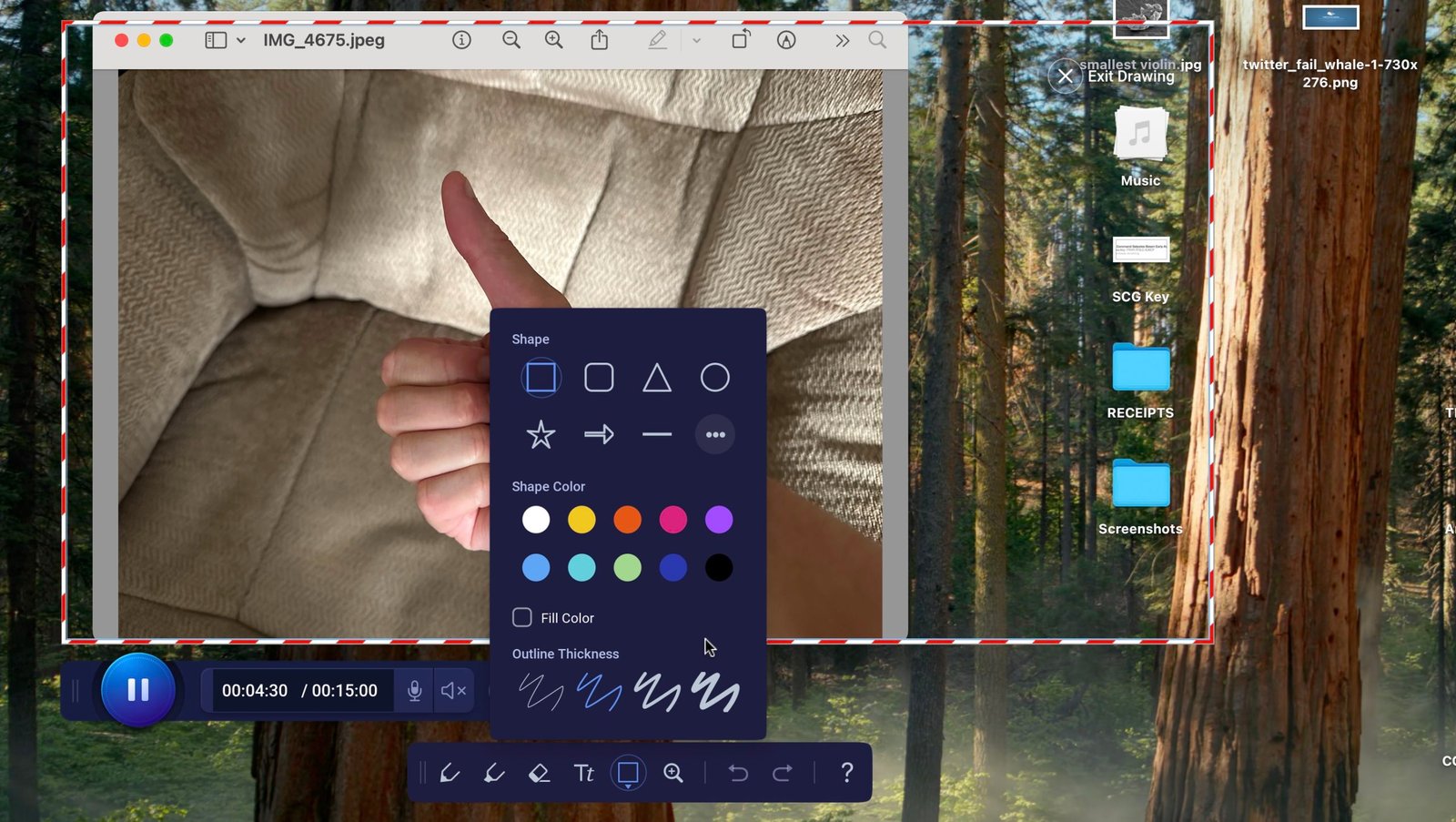
Screen recording has become an important part of modern computer use. People use it to create tutorials, record online meetings, capture gameplay, and explain technical problems. However, finding reliable recording software without paying for a subscription can be difficult.
Fortunately, several free tools offer useful features for Windows users. Some provide simple recording options, while others include advanced controls for audio, video quality, and live streaming.
In this guide, we explore the best free screen recording software for Windows and explain which option is suitable for different needs.
1. OBS Studio
OBS Studio is one of the most popular free screen recording applications. It is an excellent choice for users who want professional recording features without paying for expensive software.
The application allows users to capture their entire screen, specific windows, games, and webcam footage. It also supports multiple audio sources, making it useful for tutorials and gaming videos.
Key features:
- Free and open-source software
- Screen and webcam recording
- Multiple audio sources
- Custom recording scenes
- Live streaming support
OBS Studio may look complicated to beginners. However, its powerful features make it a strong choice for regular recording tasks.
2. ShareX
ShareX is another useful option for Windows users. It combines screen capturing, screenshots, and recording features in one application.
The software is especially helpful for people who create technical guides or need to demonstrate computer problems. Users can capture selected screen areas and use different productivity features.
Key features:
- Free and open-source
- Screenshot and screen capture tools
- GIF capture options
- Customizable workflows
- Image annotation features
ShareX has many settings, so new users may need time to understand its interface. It is best suited to people who want more control over their capture workflow.
3. Xbox Game Bar
Windows users do not always need to install additional recording software. Xbox Game Bar is included with supported Windows versions and provides a convenient way to record games and applications.
Users can press Windows + G to open its recording interface. They can also use Windows + Alt + R to start or stop recording.
Key features:
- Built into Windows
- Quick recording shortcuts
- Microphone controls
- Simple recording interface
- Saves recordings locally
One limitation is that Xbox Game Bar is designed mainly for games and applications. It is not a complete desktop recording solution for every situation.
4. Microsoft Clipchamp
Clipchamp is a useful choice for people who want to record and edit videos in one place. It allows users to capture their screen, browser tabs, or individual windows.
The application also includes basic editing features. Users can trim recordings, arrange clips, add text, and prepare videos for sharing.
Key features:
- Screen and webcam recording
- Basic video editing
- Text and title options
- Timeline editing
- Free exports up to 1080p
Clipchamp is particularly suitable for students, content creators, and beginners who want a simple editing workflow.
5. Windows Snipping Tool
The Snipping Tool is another convenient option available in Windows 11. Although many people use it for screenshots, compatible versions also include screen recording.
Users can select a specific area and capture a video without installing a separate application.
Key features:
- Built into Windows 11
- Selected-area recording
- Simple interface
- Quick access through Windows search
- Useful for short demonstrations
It does not provide the advanced recording controls available in OBS Studio. However, it is convenient for basic tasks.
How to Choose the Right Screen Recording Software
Choosing the right application depends on your requirements. Before installing a program, consider these important factors.
Recording Quality
Look for software that supports suitable video resolutions and frame rates. If you record tutorials or presentations, clear text and smooth playback should be your priorities.
Audio Recording
Good recording software should support microphone input when you need voice explanations. System audio is also important when capturing games, videos, or application sounds.
Ease of Use
Beginners should choose software with simple controls. Advanced applications offer more features, but they may require additional setup.
Editing Features
Some recording applications include basic editing tools. These features can save time when trimming videos or preparing tutorials.
Watermarks and Recording Limits
Always check the free version before downloading software. Some applications restrict recording duration, export quality, or other features.
Tips for Better Screen Recording
You can improve recording quality by following a few simple practices:
- Close unnecessary applications before recording.
- Disable notifications to avoid interruptions.
- Use a good microphone for clear voice recordings.
- Check available storage space.
- Select the correct recording resolution.
- Test your audio before starting a long session.
These small steps can help you create cleaner and more professional videos.
Conclusion
Finding the best free screen recording software for Windows depends on how you plan to use it. OBS Studio is an excellent choice for advanced recording and streaming, while ShareX offers useful capture and productivity features.
Xbox Game Bar is convenient for quick game recordings, and Clipchamp is suitable for users who want recording and editing together. Windows Snipping Tool is another simple option for short screen captures.
Compare their features and limitations before making a decision. The right software can help you create tutorials, capture important activities, and record high-quality videos without spending money.
Leave a Reply