
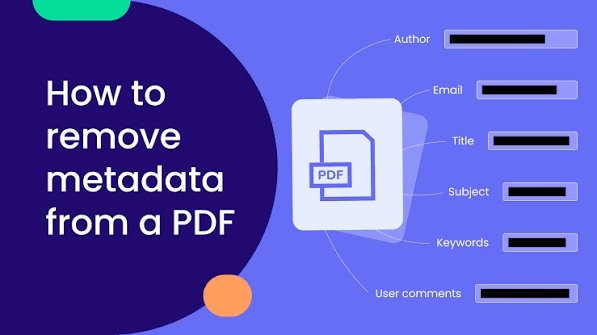
PDF files are commonly used for sharing documents, business reports, invoices, and personal information. However, many people do not realize that PDF documents can contain hidden information called metadata. This information may include the author’s name, document title, creation date, editing history, and software details.
Although metadata can be useful for organizing files, it may also create privacy concerns when documents are shared online. Learning how to remove metadata from PDF files is an important step toward protecting personal and professional information.
In this guide, you will discover what PDF metadata is, why removing it matters, and how to delete unnecessary information using simple methods.
What Is Metadata in a PDF File?
Metadata is additional information stored inside a document. It describes the file rather than displaying its main content.
For example, when someone creates a PDF using Microsoft Word or another application, the software may automatically save information about the document.
Common examples of PDF metadata include:
- Author name and username
- Document title and subject
- Creation and modification dates
- Software used to create the PDF
- Keywords and document descriptions
- Copyright information
Some PDF files may also contain hidden comments, annotations, attachments, or other information that users do not immediately notice.
Why Should You Remove PDF Metadata?
Removing unnecessary metadata can help improve document privacy and security. This is particularly important when sharing professional documents, business reports, or personal files with other people.
Here are some important reasons to remove PDF metadata.
1. Protect Your Personal Information
PDF metadata may reveal your full name, computer username, or other identifying details. Removing this information can reduce unnecessary exposure when sharing files publicly.
2. Maintain Business Privacy
Companies often share contracts, proposals, financial reports, and internal documents. These files may contain information about employees, document creators, or editing activities.
Removing unnecessary metadata helps reduce the amount of internal information included in shared documents.
3. Prepare Documents for Public Sharing
If you upload PDF files to a website, online marketplace, or public platform, hidden document properties may reveal information you did not intend to publish.
Cleaning metadata before uploading files helps make document sharing more privacy-conscious.
4. Keep Documents Organized
Removing outdated titles, incorrect author names, and unnecessary descriptions can make document properties cleaner and easier to manage.
How to Remove Metadata from PDF Files
There are several ways to remove metadata from PDF documents. The best method depends on the software you have available and the type of information you want to delete.
Method 1: Use Adobe Acrobat Pro
Adobe Acrobat Pro provides tools for managing document properties and removing hidden information.
Follow these steps:
- Open your PDF file in Adobe Acrobat Pro.
- Select the Tools section.
- Find the Redact option.
- Look for the option to sanitize or remove hidden information.
- Review the available information before removing it.
- Save the cleaned document as a new PDF.
The exact options may vary depending on your Acrobat version.
Always review the document carefully before saving because removing certain hidden elements may affect comments, attachments, or other useful content.
Method 2: Remove Metadata Using Free Online Tools
Several online PDF tools offer metadata removal features. These services can be useful when you need a quick solution without installing desktop software.
The general process is simple:
- Open a trusted PDF metadata removal website.
- Upload your PDF document.
- Select the metadata removal option.
- Wait for the tool to process your file.
- Download the cleaned PDF.
- Check the document properties again.
Before uploading sensitive documents, review the service’s privacy policy, file retention practices, and security information. Avoid uploading confidential business or personal documents to services you do not trust.
Method 3: Use PDF Software on Your Computer
Some desktop PDF applications allow users to edit document properties directly.
You can usually open the document properties section and remove information such as the author, title, subject, and keywords.
However, changing visible document properties does not always remove every type of hidden information. Comments, attachments, embedded files, and other content may require separate cleaning.
How to Check If PDF Metadata Has Been Removed
After cleaning your PDF, it is important to verify the results.
On Windows, follow these steps:
- Find the cleaned PDF file.
- Right-click the file.
- Select Properties.
- Open the Details tab.
- Review the available document information.
You can also open the PDF in a compatible reader and check its document properties.
Remember that Windows file properties and internal PDF metadata are not always identical. For a more complete check, use a trusted PDF inspection tool.
Important Tips for Safe PDF Metadata Removal
Before sharing a cleaned PDF, consider these useful practices:
- Always keep an original copy of your document.
- Use trusted software and reputable online services.
- Check the document after removing metadata.
- Remove unnecessary comments and attachments separately.
- Avoid uploading confidential files to unknown websites.
- Make sure important document content remains unchanged.
For stronger PDF document privacy protection, review both the visible document content and its hidden information before sharing it with others.
Conclusion
PDF metadata can reveal more information than many users expect. It may include author names, creation dates, software details, and other document properties.
Fortunately, removing this information is relatively simple with the right tools. Adobe Acrobat Pro, desktop PDF applications, and trusted online services can help clean unnecessary metadata.
Whether you share personal documents or manage professional files, checking metadata before uploading or sending a PDF is a smart privacy practice. Make it part of your regular document-sharing routine to reduce unwanted information exposure and maintain better control over your files.

Leave a Reply