
Introduction
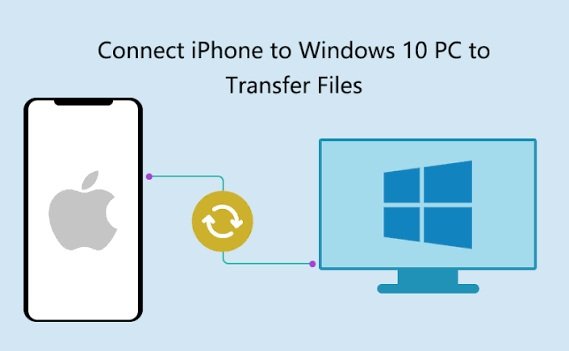
Transferring iPhone photos to a Windows PC gives you another copy of important memories and makes it easier to organize large photo collections. You can use a USB cable, Apple’s Windows software, the Photos app, or iCloud. The best method depends on your connection, photo library size, and whether you want a wired or wireless transfer.
Transfer photos with a USB cable
Unlock your iPhone and connect it to the PC with a compatible USB cable. If your iPhone asks whether to trust the computer, review the prompt and choose Trust only if it is your own or a computer you trust. Enter your passcode if requested.
Open the Windows Photos app and look for the Import option. Choose the connected iPhone if it appears, select the photos or videos you want, and follow the prompts to import them. Keep the phone unlocked if the computer cannot access its photos.
Use File Explorer
Depending on your Windows setup and iPhone software, the phone may appear in File Explorer under This PC. Open the device and browse to the DCIM folder if available. Copy the files to a folder on your computer. Keep the original files on your phone until you confirm that the copied images open correctly.
Transfer photos with iCloud
If you use iCloud Photos, you can access your library through iCloud for Windows or the iCloud website. Sign in with your Apple Account and follow the current setup instructions. Cloud syncing can take time, especially with a large library or a slow connection. Check whether files are stored locally or are still being downloaded before disconnecting from the internet.
If the iPhone does not appear
Try another USB port or cable, unlock the phone, and reconnect it. Some cables support charging but not reliable data transfer. Restarting both devices can also help. Install current Windows updates and use Apple’s official support instructions for any required device software.
Keep your photos organized
Create folders by year or event before importing a large collection. After copying, open a selection of files to confirm they work. Keep a second backup of irreplaceable photos on an external drive or another trusted service. Do not delete the phone copies until you have verified the backup.
Conclusion
A USB cable is often the simplest way to import a selected batch of photos, while iCloud can suit people who prefer syncing. Choose a method, verify the transferred files, and maintain a separate backup for important pictures.

Leave a Reply