
Introduction
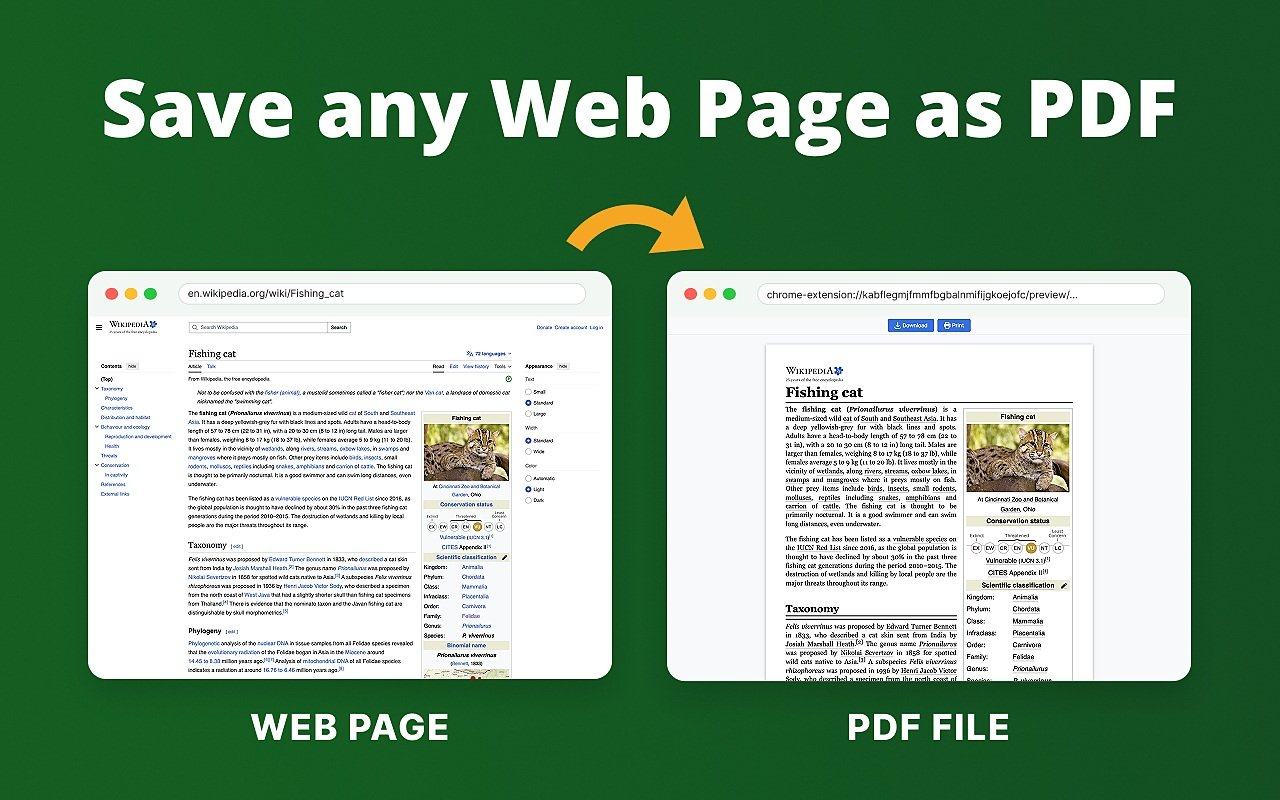
Saving a web page as a PDF makes it easier to read, share, or keep a copy for later. It can also preserve useful information when you need to work offline. Google Chrome includes a built-in print option, so you usually do not need an extra extension. This guide explains how to save a page as a PDF on a Windows PC or Mac.
How to save a web page as a PDF
First, open Google Chrome and visit the page you want to save. Wait for the page to finish loading. If it contains important images or sections, scroll down so that any content that loads as you move through the page has a chance to appear.
Next, open Chrome’s print dialog. On Windows, press Ctrl + P. On a Mac, press Command + P. You can also select the three-dot menu in the top-right corner and choose Print.
In the print window, find the Destination option. Choose Save as PDF. Review the preview, then adjust the layout, paper size, margins, or pages if needed. Select Save, choose a folder, enter a clear file name, and save the PDF.
How to save only certain pages
If the print preview contains several pages, you can save only the pages you need. In the Pages section, choose a custom range, such as 1–3 or 2, 4, 6. Check the preview before saving to avoid including unwanted pages.
Improve the saved PDF
For a cleaner result, close unnecessary pop-ups and banners before printing. If the website offers a reader view, try it when the page contains lots of menus or sidebars. You can also change the layout between portrait and landscape when a table is too wide.
Keep in mind that interactive elements, videos, and some animations will not work inside a PDF. The file is a static copy of the page’s printable content.
Fix common problems
If the PDF looks incomplete, reload the page and wait for all content to load before printing. If text is cut off, try changing the layout or margins. If Save as PDF is missing, check the destination menu and make sure Chrome is up to date. For pages that require a login, confirm that you are signed in before opening the print dialog.
Conclusion
Chrome makes it straightforward to keep a web page as a PDF. Open the print dialog, choose Save as PDF, check the preview, and select a destination folder. For more ways to
save online documents for offline use, keep your files organized with descriptive names and folders.

Leave a Reply