
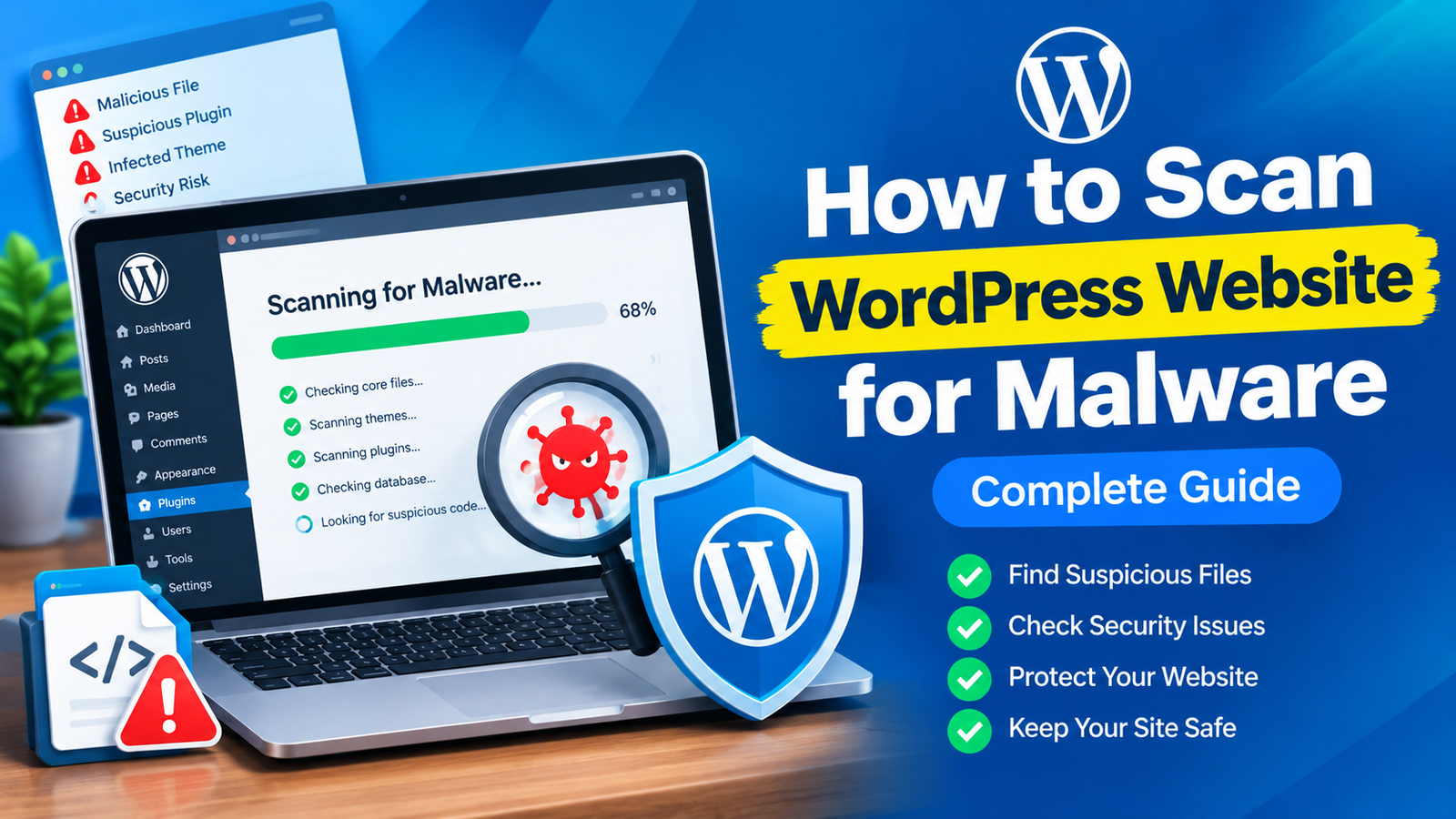
WordPress websites can become targets for malware, malicious scripts, and unauthorized changes. Sometimes, an infection is easy to notice because your website redirects visitors or displays strange content. However, malware can also remain hidden for a long time.
That is why regularly scanning your website is an important part of WordPress security. If you are wondering how to scan WordPress website for malware, you can use security plugins, hosting tools, and manual checks to find suspicious activity.
In this guide, you will learn simple ways to scan your WordPress website and identify possible malware.
Why Should You Scan Your WordPress Website?
A malware scan can help you find suspicious files, unauthorized changes, malicious code, and other security problems.
Some infections can affect your website without immediately changing its appearance. For example, malicious code may create hidden links, redirect selected visitors, or add unwanted administrator accounts.
Regular scanning can help you identify these problems before they become more serious.
1. Create a Website Backup
Before running a detailed security scan, create a complete backup of your WordPress website.
Your backup should include both your WordPress files and database. Store the backup in a safe location outside your hosting account when possible.
A backup gives you a recovery option if something goes wrong during the cleanup process.
However, remember that an old backup may already contain malware. Do not automatically restore a backup simply because it is available.
2. Use a WordPress Security Plugin
One of the easiest ways to scan a WordPress website is by using a reputable security plugin.
Security plugins can scan WordPress core files, themes, plugins, and other areas of your website. Depending on the tool, a scan may also identify suspicious code, modified files, malicious URLs, or known malware patterns.
Install a trusted security plugin from a reliable source. After installation, open its scanning section and start a full website scan.
The first scan may take some time, especially if your website contains many files.
3. Run a Full Website Scan
When a security plugin provides different scan options, choose a full or comprehensive scan when possible.
A quick scan may only check selected files, while a complete scan can examine more areas of your WordPress installation.
During the scan, avoid making unnecessary changes to your website. Allow the security tool to complete its process and review the results afterward.
Do not immediately delete every file marked as suspicious. Some scanners can produce false positives.
4. Check WordPress Core Files
Malware can sometimes modify WordPress core files.
A security scanner may compare your existing core files with clean WordPress files and identify unexpected changes.
If important WordPress files have been modified, replacing the affected core files with fresh copies can help restore them.
Never replace files blindly if you are unsure about what they do. Keep a backup before making major changes.
5. Check Themes and Plugins
Themes and plugins are common areas that should be included in a malware scan.
Review all installed plugins and themes. Look for software that you do not recognize, plugins you no longer use, or themes downloaded from unreliable sources.
Remove unused software when appropriate. Also, update active themes and plugins to their latest compatible versions.
Avoid using pirated or modified themes and plugins because they can contain hidden malicious code.
6. Check Your WordPress Database
Malware is not always stored in website files. Attackers can also insert unwanted content into the WordPress database.
Check your posts, pages, widgets, and other database content for suspicious scripts, unfamiliar links, or unexpected changes.
If you are not comfortable working with your database, avoid making manual changes. A professional WordPress security service can help inspect and clean database infections safely.
7. Look for Unknown Admin Accounts
Open your WordPress dashboard and review the list of users.
Look for administrator accounts that you did not create. An unknown administrator account can be a sign that someone gained unauthorized access to your website.
If you find a suspicious account, first investigate it and then remove it if you confirm that it is unauthorized.
Afterward, change passwords for legitimate administrator accounts and enable two-factor authentication if available.
8. Scan Your Website With Your Hosting Provider
Some hosting companies provide website security tools and malware scanners.
Check your hosting control panel to see whether a security scan is available. Hosting-level scanning can provide another layer of detection in addition to your WordPress security plugin.
Using more than one trusted detection method can sometimes help identify problems that one scanner misses.
9. Check Google Search Console
Google Search Console can provide useful information about security problems affecting your website.
Check the Security Issues section for warnings related to hacking, malware, or harmful content.
If Google identifies a problem, do not request a review until you have completely cleaned and secured your website.
After the infection has been removed, you can request a review so Google can check your website again.
10. Use a WordPress Malware Scanning Checklist
A consistent scanning routine makes website security easier to manage. Your WordPress malware scanning checklist can include checking core files, plugins, themes, user accounts, database content, redirects, and Google Search Console warnings.
Schedule regular scans instead of waiting until your website shows obvious signs of infection.
How Often Should You Scan WordPress?
There is no single schedule that works for every website. However, regular automated scanning is better than checking only after something goes wrong.
Websites with frequent updates, multiple administrators, or important customer information may benefit from more frequent monitoring.
You should also run a scan whenever you notice unusual redirects, unexpected files, strange login activity, or unexplained website changes.
Final Thoughts
Learning how to scan WordPress website for malware is an important step toward maintaining a secure website. Start with a reliable backup, then use a trusted security plugin or hosting scanner to examine your files.
Review suspicious results carefully instead of deleting files without confirmation. Also check your themes, plugins, database, administrator accounts, and Google Search Console.
Finally, keep WordPress updated, remove unused software, use strong passwords, and enable additional security features such as two-factor authentication.
Regular scanning will not guarantee that your website can never be infected, but it can help you discover suspicious activity earlier and respond before a small security problem becomes a major issue.


Leave a Reply