
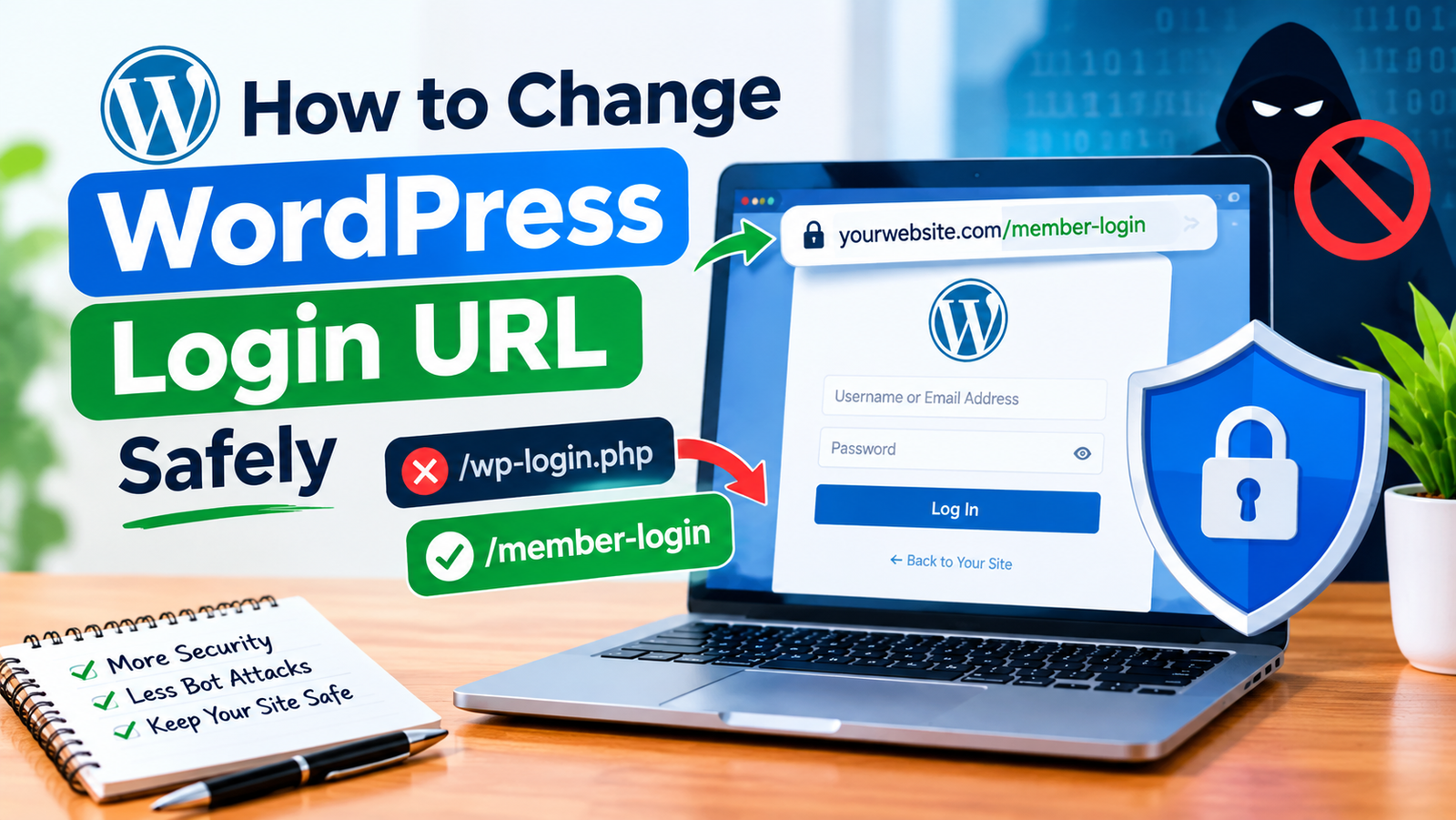
The default WordPress login page is usually available at /wp-admin or /wp-login.php. Because these URLs are commonly known, automated bots can easily find the login page and attempt to access your website.
Learning how to change WordPress login URL can add another layer of protection to your website. Instead of using the standard login address, you can create a custom login URL that is harder for automated bots to discover.
Changing the login URL is not a replacement for a strong password or other security measures. However, it can help reduce unwanted login requests and make your WordPress dashboard less exposed.
Why Change the WordPress Login URL?
Every WordPress website uses a standard login system. Attackers and automated bots already know common WordPress login paths.
When bots discover your login page, they may repeatedly try different usernames and passwords. This is commonly known as a brute-force attack.
A custom login URL can make the login page less obvious. It can also reduce the number of automated requests reaching the standard WordPress login address.
For better protection, combine a custom login URL with strong passwords, limited login attempts, two-factor authentication, and regular software updates.
Use a WordPress Security Plugin
The easiest way for beginners to change the login URL is by using a trusted WordPress security plugin.
First, log in to your WordPress dashboard. Go to Plugins and select Add New Plugin.
Search for a reputable security plugin that provides login URL customization. Many security plugins include this feature along with brute-force protection and other security tools.
Install the plugin and click Activate.
Once activated, open the plugin settings and look for an option such as Login URL, Login Security, or Change Login URL.
The exact menu name depends on the plugin you choose.
Choose a New Login URL
After finding the login URL setting, you can enter a new login path.
For example, instead of using:
yourwebsite.com/wp-login.php
you could create a custom address such as:
yourwebsite.com/member-login
Choose something that is easy for you to remember but not obvious to other people.
Avoid using simple alternatives such as /login or /admin because these are still common and easy to guess.
A unique login path provides better protection against automated requests.
Save the New Login Address
After entering your new login path, save the changes.
Your plugin should then update the WordPress login address. The old login URL may no longer open the normal login page.
Before logging out of WordPress, make sure you know the new address.
It is a good idea to bookmark the new login page in your browser. You can also save it in a secure password manager.
Do not share your new login URL publicly unless there is a specific reason to do so.
Test the New Login URL
Testing is an important step after changing the login address.
Open a new browser tab and enter your new login URL. Make sure the WordPress login page appears correctly.
You can also test the old /wp-login.php address. Depending on the plugin and configuration, it may redirect, show an error, or no longer display the normal login form.
Do not immediately log out until you have confirmed that the new login URL works.
If you accidentally lose access, follow the recovery instructions provided by your security plugin or hosting provider.
Keep Your New Login URL Safe
Changing the login address does not mean your website is completely protected.
You should still use a strong and unique administrator password. Avoid using passwords that contain your name, website name, or other easily guessed information.
Two-factor authentication can provide another layer of security. With two-factor authentication enabled, an attacker needs more than just your password to access the account.
You should also keep WordPress, themes, and plugins updated.
Regular backups are important as well. If a security problem occurs, a recent backup can help you restore your website.
Do Not Forget the New URL
One common problem after changing the WordPress login URL is forgetting the new address.
Write the address down in a secure place or save it in your password manager. Avoid posting it in public areas such as comments, forums, or social media.
If multiple administrators use your website, make sure authorized users know how to access the new login page.
You should also review your custom WordPress login address after major security plugin changes to make sure it continues working correctly.
What If You Want to Change It Again?
You can usually change the login URL again from the same plugin settings.
For example, if your current login path becomes widely known, you can replace it with another unique path.
However, changing it too frequently can create confusion for website administrators. Choose a secure URL and keep it private rather than changing it unnecessarily.
Final Thoughts
Learning how to change WordPress login URL is a simple security improvement that can help reduce unwanted login traffic. A custom login address makes the standard WordPress login page less obvious to automated bots.
For beginners, using a reputable security plugin is usually the easiest method. Choose a unique login path, save the settings, test the new URL, and keep the address secure.
For stronger protection, combine your custom login URL with strong passwords, limited login attempts, two-factor authentication, regular updates, and reliable backups.
These steps can help make your WordPress website more secure while keeping the login process convenient for authorized users.
Leave a Reply